

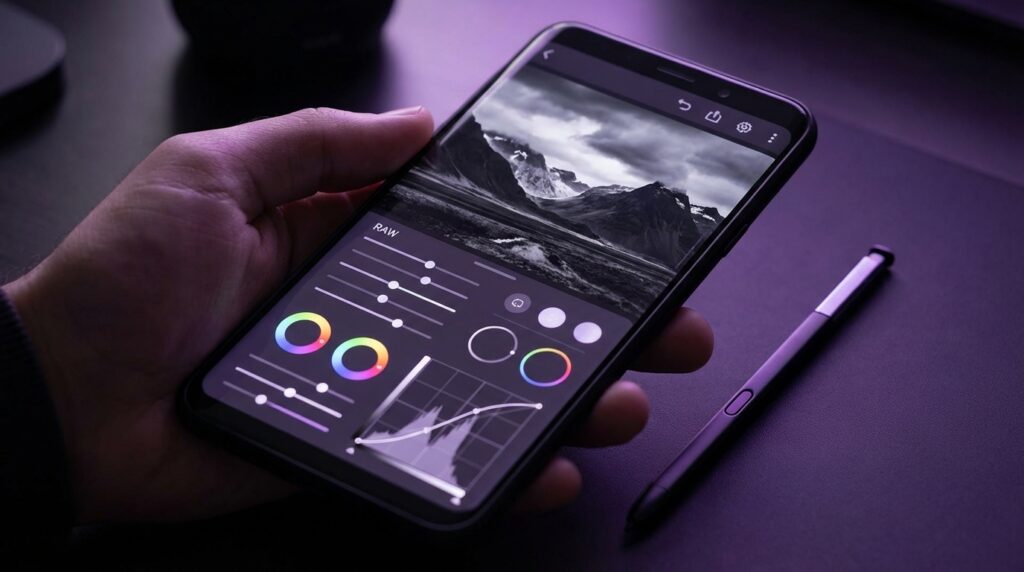
“The faint whirr of a 64 MB SD card sliding into a chunky Canon, the tiny 2-inch LCD trying its best to preview a RAW file it could barely handle.”
You remember that lag, right? You would click the shutter, hear that chug-chug of the mirror, and then stare at a muddy preview that never quite matched what you saw later on your CRT monitor. Back then, RAW files felt like these mysterious digital negatives that only your desktop could “develop.” Fast forward to the phone in your pocket: it beats the old DSLR in speed, shoots RAW, edits RAW, and shares the final shot in less time than it took that Canon to write a single file to the card.
That jump, from waiting on a spinning hourglass on Windows XP to pinching and zooming through 48 MP RAW files on a glass slab, is why mobile RAW editors are such a big deal. Your phone is not just a camera. It is the darkroom, the light table, the scanner, and the publishing press. And if you are shooting RAW on your phone or importing from a Fujifilm, Sony, or Canon body, the app you pick shapes how much detail you can pull from those shadows and highlights.
Maybe it is nostalgia talking, but I still feel the weight of that first DSLR in my hands when I open a RAW file on my phone. I remember worrying if my laptop fans would spin up just from dragging the exposure slider. Now I am flicking sliders on a thin OLED screen while standing in line for coffee. Same RAW concept. Very different experience.
Back in the mid-2000s, RAW editing meant Adobe Camera Raw inside Photoshop or maybe Lightroom 1.0 on a PC that felt like it would melt under load. There was no “let me quickly fix this shot in the Uber.” You dumped a CompactFlash or SD card into a reader, crossed your fingers that the driver worked, then watched a folder of .CR2 or .NEF files crawl onto your desktop. If you wanted to adjust white balance, you waited for that progress bar to finish every single time.
Phone cameras at the time did not even speak RAW. You got mushy JPEGs with strong noise reduction and sharpness baked in. No headroom. No second chances. You could slap a filter on them in early apps, but that was just lipstick on 8-bit files.
The turning point came when mobile sensors started catching up and platforms allowed RAW capture. Early Android phones introduced DNG support, then Apple added ProRAW and more serious manual controls. That little shift flipped the phone from a point-and-shoot replacement into something that could sit next to your mirrorless body without apologizing.
Retro Specs: Canon EOS 300D (2003)
6.3 MP APS-C sensor
RAW at 3072 × 2048
Rear LCD: 1.8 inches, 118k dots
Storage: CompactFlash, up to 2 GB without hacks
RAW buffer: about 4 frames before slowdown
Today, we are opening 50 MP RAW files on phones with 8 GB or 12 GB of RAM, bright OLED displays, and chipsets that chew through noise reduction and lens corrections like it is nothing. The language of photography, though, has not changed: expose to protect highlights, watch your histogram, mind your white balance, and treat RAW as your digital negative. Only now, you can do the whole process with your thumb.
So when someone asks “What are the top apps for editing RAW photos on mobile?” what they are really asking is: Which pocket darkroom respects the RAW file, does not crush the detail, and does not turn your nuanced shot into a plastic, over-sharpened mess?
That is where these five apps stand out. Not just as editing tools, but as spiritual successors to the old RAW converters on beige desktop towers.
Then vs Now: RAW Editing Power in Your Pocket
Before we dig into each app, it helps to anchor how far we have come. Imagine loading a Nokia 3310 with a RAW file from a modern mirrorless camera. It would tap out immediately. The iPhone 17 or a high-end Android? It shrugs.
| Spec / Experience | Nokia 3310 (2000) | iPhone 17 (Modern Flagship) |
|---|---|---|
| Display | 84 × 48 monochrome, no images | ~2796 × 1290 OLED, millions of colors |
| Photo Support | None. Ringtones and SMS only. | 48-50 MP photos, ProRAW support, HDR preview |
| Storage | Phone memory measured in KB | Up to 1 TB internal storage |
| RAW Editing | Not possible | Full RAW editing, local adjustments, AI masks |
| Processing Power | Simple games like Snake | Multi-core CPU + GPU, edits big RAWs in real time |
| Workflow | None. No camera. | Shoot → Edit → Export → Share in one device |
That jump in raw power is why mobile RAW editors feel almost casual now. You slide exposure and watch the image respond instantly. On a CRT with a spinning disk, that would have felt like magic.
Let’s walk through the top five apps that really make RAW editing on mobile feel natural, while still respecting the history of how we used to treat these files.
Lightroom Mobile: The Pocket Darkroom That Grew Up
If you ever installed Lightroom 2.0 from a CD onto a Windows machine with a noisy fan, Lightroom Mobile will feel like meeting an old friend who swapped cargo pants for a tailored jacket. Underneath, though, the DNA is the same: cataloging, non-destructive edits, and that familiar Develop panel logic.
On mobile, Lightroom handles RAW files from phones and cameras with the same basic engine that powers the desktop version. Import a DNG from your Pixel or a .CR3 from your Canon R-series, and the app gives you the usual sliders: exposure, contrast, highlights, shadows, whites, blacks, texture, clarity. You know the drill.
The first time you pinch into a 48 MP DNG on a phone and see the grain, the micro-contrast on a brick wall, or the color nuance in a sunset, your brain might flash back to waiting for Adobe Camera Raw to load on an old LCD monitor.
User Review from 2005: “Lightroom feels heavy but powerful. I can finally organize my RAWs and edit them in one place. Just wish it was faster on my Pentium 4.”
Why Lightroom Mobile Still Matters for RAW
Lightroom Mobile is strong for RAW editing because:
– It uses Adobe’s RAW engine, which reads camera profiles, lens profiles, and color data in a mature way.
– It speaks DNG, ProRAW, and most major camera RAW formats.
– It treats your photo history like a timeline, not a pile of flattened files.
The interface borrows from the desktop version: histogram at the top, selective edits, masks, curves, color mixer, HSL, and presets. If you have used Lightroom on a laptop, the muscle memory transfers almost instantly.
Performance is surprisingly good, even on larger RAW files, though batch editing massive mirrorless imports will remind you that you are still on a phone.
Workflow Strengths
– Cloud sync: Shoot on a camera, import to desktop Lightroom, and edits show up on your phone, or vice versa.
– Camera integration: Lightroom’s camera can capture DNG on both iOS and Android, giving you RAW right from the start.
– Presets: You can build and share a consistent look across phone and desktop.
If you love that old darkroom feeling but do not want to be chained to a desk again, Lightroom Mobile is the closest echo of those early digital workflows, with none of the old lag.
Snapseed: The Classic Free RAW Editor That Refuses To Quit
Snapseed feels like the spiritual child of early mobile photo apps and serious desktop tools. It is free, simple on the surface, and yet can handle RAW files far better than its age would suggest.
You open a DNG, and Snapseed quietly shifts into RAW mode. Behind that clean interface, it lets you adjust exposure, white balance, highlights, shadows, and structure before it bakes things down to a JPEG for the rest of the tools. It is not as deep as Lightroom, but for fast, thoughtful edits, it does more than enough.
The first time I tried Snapseed on a RAW file, I half expected it to choke. Instead, it opened faster than some desktop software from the late 2000s.
Retro Specs: Early RAW Workflow with Capture NX (circa 2006)
Machine: 2 GB RAM, 160 GB HDD
RAW file size: 8-12 MB
Opening one file: 5-10 seconds
Applying noise reduction: noticeable lag
Export to JPEG: wait, then wait some more
Why Snapseed Works for RAW Shooters
– RAW Develop module that handles DNG and many camera RAW types.
– Non-destructive-style editing inside a session, though final export is baked.
– Tap-and-drag interface that feels natural on touch screens.
You do not get complex masking or AI subject detection. The local adjustments feel more like those early gradient and control point tools from old Nikon and Canon software, which for many photographers is more than enough.
Where Snapseed Shines
– Free price tag with no subscription.
– Pace of editing: quick, responsive, ideal for on-the-go tweaks.
– Clean interface that does not overwhelm you with sliders.
If Lightroom Mobile is the modern version of the big desktop suite, Snapseed is closer to firing up a quick, responsive RAW viewer from the mid-2000s that just happens to live in your pocket and understand touch.
VSCO: RAW Meets Mood
You might remember VSCO first for its film-style filters. Grain, fade, muted color palettes. Early on, people used it to fix over-sharpened phone JPEGs. As phones gained RAW capture, VSCO grew enough support to treat those files with a bit more respect.
Open a RAW in VSCO, and you get the usual sliders: exposure, contrast, temperature, tint, shadow and highlight control. Then you drop a preset over it, not as a cheap overlay, but as a color and tone reinterpretation of the underlying digital negative.
This feels a bit like shooting Kodak Portra on a Canon AE-1, getting the negatives scanned, and then tweaking them in something like early Lightroom. You have the RAW flexibility, but your goal is not clinical perfection. You are chasing a look.
Why VSCO Works for RAW
– Supports RAW on devices that allow RAW shooting, including DNG and some native formats.
– Presets are tuned for tonal subtlety, not just heavy-handed filters.
– Basic RAW editing covers the main controls most shooters need.
You do not come to VSCO for technical profiling or precise color matching to camera calibration charts. You come for that feeling when you first saw a film scan that did not look like straight-out-of-camera digital.
Who VSCO RAW Is For
– People who want a consistent aesthetic, fast.
– Mobile photographers who shoot RAW but want fewer sliders.
– Creators who treat RAW as a flexible starting point rather than a lab experiment.
If Lightroom and Snapseed nod to the serious side of digital photography, VSCO leans into that moment when you first discovered that a preset could give your photo the same vibe as an album cover you loved.
Darkroom (iOS): RAW Control with a Retro Heart
Darkroom on iOS feels like what would happen if an old-school RAW converter was designed after someone binge-watched Apple design videos. It is clean, fast, and very comfortable for people who care about color and curves.
Open a ProRAW or DNG, and Darkroom treats it as a first-class file, not a token checkbox feature. You get:
– Real-time RAW adjustments with a responsive histogram.
– Curves with RGB channels.
– HSL sliders per color.
– Local adjustments through masks on newer versions.
The magic here is the balance: Darkroom does not overwhelm you, yet it still gives you tools that feel like what you saw in desktop apps from the Aperture and early Lightroom era.
User Review from 2005: “Apple Aperture has such a smooth interface. I can adjust RAW exposure and white balance without feeling like I am fighting the software. Just wish I had this on my laptop when I travel.”
Why Darkroom Earns a Spot
– Strong RAW engine for Apple ProRAW and DNG.
– Good performance on newer iPhones and iPads.
– Intuitive controls, especially for curves and color.
For someone used to the measured control of desktop tools, Darkroom is a comfortable move into pure mobile editing. It does not feel like a port. It feels like a re-think that respects where we came from.
Darkroom Strengths for RAW
– Deep integration with the iOS Photos library, including RAW files.
– Batch editing that works well with multiple RAWs from a shoot.
– Export control for size, format, and color space.
If you grew up trimming highlights in Aperture or wrestling with color balance on a hardware-calibrated monitor, Darkroom feels like a throwback in spirit, just dressed in modern iOS polish.
Adobe Photoshop Express: RAW Meets Quick Fix
Photoshop Express does not try to be full Photoshop. It sits in that spot between serious RAW editing and “I just need this to look good for posting.” Yet under that casual surface, it has a RAW engine that borrows from the same Adobe world Lightroom lives in.
You open a RAW file, and Photoshop Express shows you options for exposure, contrast, highlights, shadows, clarity, dehaze, and color. It adds convenience layers: spot heal, blur, text, quick filters.
It feels like the mobile equivalent of firing up Photoshop CS2, dropping in a RAW, hitting Camera Raw, doing the basics, and then jumping straight to quick retouching.
Why Photoshop Express Belongs Here
– Adobe’s RAW processing under a simplified interface.
– Tools beyond pure photography: text, stickers, healing, overlays.
– Good for hybrid work: photography plus graphics.
You might not finish a client-grade fine art edit here, but for event photographers, social media managers, or anyone who wants RAW flexibility with layout tools, it covers a nice niche.
Where It Fits in a RAW Workflow
– Fast fixes to RAW files that need more than pure tone and color.
– Creating story slides or posts where image and text need to live together.
– Adding polish to a RAW edit you started elsewhere, then exported.
Think of Photoshop Express as the casual cousin of Lightroom. Less about archiving and precision, more about getting that shot from flat RAW to something that pops on a small screen.
Choosing the Right RAW App for Your Style
Each app reflects a piece of that old desktop world where RAW editing began, just compressed into a glass slab that you can slip into a pocket.
| App | RAW Strength | Best For | Feel Compared To Old Desktop Tools |
|---|---|---|---|
| Lightroom Mobile | Deep, camera-aware RAW engine | Serious shooters, hybrid desktop + mobile | Like modern Lightroom Classic without the baggage |
| Snapseed | Solid basic RAW develop, great for speed | Free users, quick edits, travelers | Like a snappy, simplified RAW converter from mid-2000s |
| VSCO | RAW plus strong preset style | Creators chasing a consistent look | Like Lightroom + film presets packs from the early preset boom |
| Darkroom (iOS) | ProRAW-focused, strong curves and color tools | iPhone shooters who care about tone control | Feels like Aperture reborn for touch screens |
| Photoshop Express | RAW with extra design features | Social-first users, quick layout work | Like Camera Raw inside a light version of Photoshop |
What Matters Most When Editing RAW on Mobile
Underneath the marketing, RAW editing on a phone boils down to a few core questions:
1. Can the App Respect the RAW File?
RAW is not just a bigger JPEG. It is sensor data with room to adjust:
– White balance without wrecking colors.
– Highlights without ugly banding.
– Shadows without plastic-looking noise removal.
Lightroom Mobile and Darkroom are strong here, with Snapseed doing a good job for a free tool. VSCO and Photoshop Express cover the basics but lean more into look than lab-grade control.
2. Does the Interface Match How You Think?
Some people think in curves and HSL. Others think in presets and vibes. Back on desktops, this was the split between pure RAW converters and suites full of plugins.
On mobile:
– Lightroom: slider-heavy, analytic, detailed.
– Snapseed: tool-based, gesture-friendly.
– VSCO: preset-forward, with basic refinement.
– Darkroom: curve and color-heavy, but sleek.
– Photoshop Express: mix of RAW and graphic tweaks.
If you hated complicated desktop software, you will gravitate toward Snapseed or VSCO. If you loved tinkering, Lightroom and Darkroom will feel like home.
3. How Does It Fit Your Shooting Habit?
Ask yourself:
– Do you shoot mainly on your phone in RAW or ProRAW?
– Do you import from a dedicated camera with a card reader?
– Do you need your edits on desktop later?
If you cross between camera bodies and phones, Lightroom’s sync or Darkroom’s batch tools make life easier. If your camera lives in your phone, any of the five can work, with style being the tie-breaker.
The Sensory Shift: From Plastic Buttons to Glass Slabs
There is also something almost physical about this jump from early digital to mobile RAW. Remember the feel of those old cameras and phones?
You had:
– Chunky DSLRs with rubber grips, heavy prism housings, and that reassuring metallic click.
– Phones like the Nokia N95, with slide-out keypads and cameras that bragged about 5 MP sensors.
Now:
– Your phone is a flat glass and metal sheet, weight balanced to feel almost neutral in the hand.
– The shutter sound is a sample, not a real mechanical action.
– RAW capture is a toggle in a settings menu, not a rare camera feature.
Retro Specs: Nokia N95 (2007)
Camera: 5 MP, Carl Zeiss optics
Max resolution: 2592 × 1944
RAW capture: None, only JPEG
Screen: 2.6 inches, 240 × 320
Memory card: microSD up to 8 GB
If someone in 2007 had told you that in less than two decades, you would be opening 40+ MP RAW files, editing curves and HSL, and exporting ready-to-print images from a device thinner than that N95, you might have laughed and gone back to playing with your slide mechanism.
Now we live in that reality. The plastic click of T9 keypads has been replaced by haptic taps on glass. The grainy 2.6-inch screen has become a bright canvas for histogram juggling and tiny, precise adjustments that used to demand a full desk setup.
The question is no longer “Can a phone handle RAW?” It is “Which app translates your vision, your habits, and yes, even your nostalgia, into edits that stay true to the file and the moment you pressed the shutter?”
And that is where these five apps sit: as modern tools that still carry the spirit of those early RAW editors from the age of noisy desktops and chunky card readers.
