

“The soft buzz of a Nokia 3310 on a plastic classroom desk, the tiny ‘Connecting…’ text crawling over GPRS while a single low-res image took forever to load.”
You remember that lag, right? Back then, we were just grateful the phone could reach the internet at all. Today, your phone has more power than a whole computer lab from 2003, yet your browser still feels sluggish, pages stutter, and your data plan melts faster than a polyphonic ringtone download on WAP. That is where mobile ad blockers come in. The same way we once hunted for that perfect, tiny 10 KB ringtone to save space, we now hunt for every kilobyte we can shave off bloated web pages stuffed with trackers, auto-play videos, and heavy scripts.
Ad blockers for mobile are not only about hiding annoying banners. They are about speeding up browsing, reducing background noise on your network, and trimming the digital fat from every page your phone pulls down. The funny part is, the basic logic is not so different from those old “light” WAP pages: send less junk, load faster, pay less. Just now, instead of squeezing content into a 128×128 pixel display, we are trying to keep a 120 Hz OLED screen from choking on ad scripts.
Back on those early phones, the screen was bright but tiny, the plastic body felt cheap but reliable, and the internet felt like a side quest, not the main game. You tapped out URLs with T9, each number press a tiny clack under your thumb, the phone heavier than it looked because of that chunky battery. Pages were mostly text, simple HTML, no auto-play anything. The biggest “ad” you would see might be a tiny operator banner at the top, and even that looked like part of the interface.
Today, your smartphone screen is sharp enough to reveal the pixels in a fake “Download” button, the body feels like polished glass and metal, and the browser is where you live: news, socials, banking, work, video, everything. That polish comes with a cost. Ad networks, tracking scripts, video players, A/B testing scripts, analytics tags… every site you open is pulling in dozens of external files before you even scroll. Your phone has the horsepower, but bandwidth, battery, and your patience are still very real limits.
Maybe it is just nostalgia talking, but there is something nice about the idea of a lighter web again. Less noise, more signal. That is what a good mobile ad blocker can bring back: not an empty, sterile page, but a page that loads at the speed your hardware deserves. Think of it as turning a 2005 GPRS mindset into a 5G experience: only download what matters.
Retro Specs: Mid-2000s “Mobile Web”
Screen: 128×160 or 176×220 pixels
Network: GPRS / EDGE (tens of kbps, if you were lucky)
Browser: WAP or early XHTML-MP
Typical page weight: 10-50 KB
Ads: Minimal, often text or simple images
Now your average mobile page can cross 2 MB easily, sometimes more than 5 MB once you add every script and high-res image. That is like trying to stream a full album on the connection we once used for downloading a single picture. So if you want faster browsing, fewer hiccups, and longer battery life, ad blockers for mobile are not optional nice-to-haves. They are your cleanup crew.
Why Mobile Browsing Feels Slow Even On Fast Phones
Let us start with what is actually slowing you down. Your phone has multiple cores, plenty of RAM, and a GPU that could make a PlayStation 2 blush. Yet, open a heavy news site, and you still watch a white screen while the loading circle spins.
The slowdown usually comes from three places:
1. Network weight
2. Script execution
3. Visual clutter
No list at the start of the article, but now that we are past that 300-word mark, we can get practical.
Network Weight: Every Ad Is Extra Luggage
Every ad network call is another request. Each tracker is another piece of JavaScript. Each video ad is another media file. Your browser is juggling:
– HTML from the main site
– CSS for styling
– JS for site logic
– Third-party ad scripts
– Third-party analytics scripts
– Custom fonts
– Images
– Video players
On a desktop with wired internet, this overhead still hurts, but you have more headroom. On mobile, your connection might be jumping between 4G, congested 5G, and shaky Wi-Fi. Latency is the killer here; every extra request adds wait time.
Script Execution: Your Phone Is Doing Work You Did Not Ask For
Ads and trackers are not just static images. They run JavaScript to:
– Measure viewability
– Track scrolling behavior
– Profile your interests
– Run auctions for which ad to show
– Load more ads as you scroll
Your CPU eats through this stuff. That creates two side effects you feel:
– Slower page interaction
– Higher battery drain
Ever notice your phone getting warm while just reading an article? That is not from the pixels in the text. It is usually background scripts doing things you never actually needed.
Visual Clutter: Layout Thrashing
You tap a headline, start reading, and the text jumps down as a banner squeezes itself into the page. Then another block appears in the middle of your paragraph. The browser keeps recalculating layout, shifting content to make room.
Every time the layout changes, your device redraws parts of the page. That takes work. On a high-refresh display, that adds subtle stutter and lag that you feel in your finger bones.
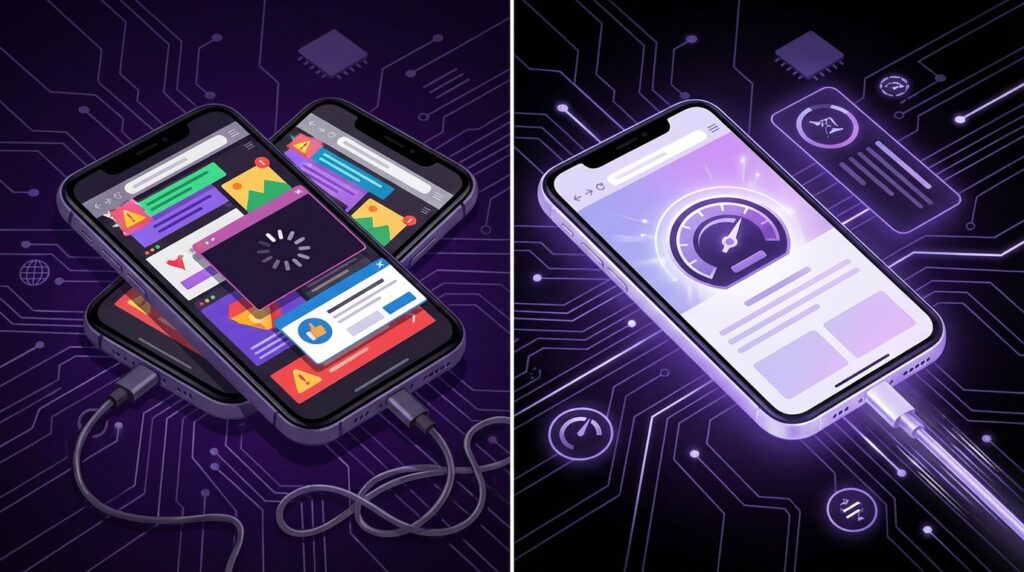
Ad blockers attack all three of these problems. They cut network requests, block third-party scripts, and keep layouts calmer. Less to download, less to process, less to redraw.
How Mobile Ad Blockers Actually Speed Things Up
Ad blockers are not magic. Under the hood, they rely on filtering rules and blocklists. Think of them like a customs officer at the browser border, checking every incoming script, image, or frame, and deciding whether it is allowed in.
DNS-Level Blocking Vs Browser-Level Blocking
On mobile, you will usually see two approaches:
1. DNS-level blocking
2. Browser-level blocking or content blocking APIs
DNS-Level Blocking
DNS is the phone book of the internet. When your browser wants to load “ads.trackerexample.com”, it asks a DNS server: “Where is this located?” If the DNS server refuses to answer or points it to a dead end, the request never reaches the ad server.
DNS-level blockers work by:
– Intercepting DNS requests from your device
– Comparing them against a blocklist of ad and tracker domains
– Dropping or rerouting the ones on that list
This happens before the browser even gets the resource. It saves both data and loading time.
Pros:
– Works across the whole device (apps, browsers, even some in-app ads)
– Lower resource usage on the device
– Often simpler once set up
Cons:
– Harder to fine-tune per site from the browser interface
– Cannot remove placeholders on the page itself as precisely
– Might break some content if the same domain serves ads and assets
Browser-Level Blocking
Browser-based ad blockers run within or alongside the browser. They can:
– Block network requests from the browser
– Hide or remove elements in the page DOM
– Use cosmetic filters to clean up leftover spaces
On iOS, content blockers use the system content blocking API. On Android, you might see full ad-blocking browsers (like Brave) or extensions in browsers that support them.
Pros:
– Fine control over cosmetic cleanup
– Easy whitelisting or adjusting rules per site
– Often better visual results
Cons:
– Limited to that browser
– Can use more CPU if not well designed
Why This Speeds Up Your Browsing
When ads do not load, the page:
– Sends fewer requests
– Waits on fewer external servers
– Runs fewer scripts
– Renders fewer complex elements
Think back to WAP days. A page that was just text rendered almost instantly. A single low-res image felt heavy. Now scale that up. If your ad blocker cuts 40 percent of the HTTP requests and blocks several hundred kilobytes (or even megabytes) of scripts and media, your experience gets closer to that pure, fast, text-first feel, just on a high-res panel.
User Review from 2005 (Paraphrased)
“I turned off images in my phone browser so the pages would load faster. It looks ugly, but WAP sites load in like 2 seconds now. Worth it for the speed.”
Modern ad blocking is like a smarter, more targeted version of that old trick. Instead of nuking all images, it focuses on ad and tracking domains, so you keep the content you care about.
Then Vs Now: Web Weight On Old Phones Vs Modern Smartphones
To show how far things have gone, let us compare the old classic Nokia 3310 web experience with a current flagship like an iPhone 17. Yes, the 3310 was not a full HTML browser champ, but that is the point. The contrast is clear.
| Feature | Nokia 3310 (Early 2000s) | iPhone 17 (Mid 2020s) |
|---|---|---|
| Screen Resolution | 84 x 48 pixels, monochrome | 2778 x 1284 pixels (or higher), OLED |
| Network | No real web; SMS/limited WAP via successors | 4G / 5G / Wi-Fi 6E+ |
| Typical Page Size | Few KB WAP decks on related devices | 2-5 MB for many modern sites |
| Ads & Trackers | Almost none; basic banners on carrier portals | Dozens of third-party scripts and ad calls |
| Loading Time Feel | Slow connection, light payload | Fast connection, heavy payload |
| Ad Blocking | Not really a thing on mobile | DNS blockers, content blockers, filter lists |
Today, your bottleneck is less about raw speed of the pipe and more about the junk stuffed into that pipe. Ad blockers attack that junk directly.
Types Of Mobile Ad Blockers And Where They Work Best
Let us break down your options across phones and tablets without drifting into jargon for its own sake.
On Android
Android is more flexible, which gives you more paths to faster browsing.
Ad-Blocking Browsers
Some browsers ship with built-in ad blocking:
– Brave
– Opera with ad blocking turned on
– Samsung Internet with content blockers
These browsers include blocklists and sometimes extra privacy filters. They often ship tuned for a good balance between compatibility and speed. Use them as your main browser and you get blocking with no extra “plumbing” work.
DNS-Based Apps
Apps that change your DNS to a privacy-focused or ad-blocking DNS service:
– DNS-based blockers (often tied to NextDNS, AdGuard DNS, etc.)
– Some VPN-style blockers that run locally on your device
They run as a local VPN, but instead of sending data to a random server, they just filter DNS requests and keep traffic direct. This works across browsers and many apps. It is one of the easiest ways to reduce junk system-wide.
System-Level Ad Blocking (For Power Users)
If you are the confident tinkerer type, there are host-file based block methods and more advanced setups. Those are closer to the spirit of people who once flashed custom firmware on their Sony Ericsson phones. Powerful, but not for everyone.
On iOS (iPhone, iPad)
Apple keeps things more locked down, but iOS has a Content Blocker API for Safari that is quite strong.
Safari Content Blockers
You install a content blocker app, grant it permission in Settings, and Safari loads its rule set.
Popular ones:
– 1Blocker
– AdGuard for Safari
– Wipr
These ship with carefully curated filter lists, including:
– Ad blocking lists
– Tracker blocking lists
– Sometimes extra annoyance lists (cookie banners, etc.)
Since the filters are compiled by the system, performance is good. When configured well, pages load noticeably faster, especially script-heavy news and blog sites.
DNS-Based Services On iOS
Just like Android, iOS can use custom DNS resolvers through:
– Encrypted DNS profiles (DoH/DoT)
– VPN-style apps that hook into DNS
That gives you system-wide ad and tracker blocking, for apps and browsers. A solid combo is DNS blocking plus a Safari content blocker.
What Speed Gains Can You Realistically Expect?
Marketing sometimes throws huge “50 percent faster” or “3x speed increase” numbers at you. The real improvement varies by:
– Which sites you visit
– How many third-party resources those sites load
– Your network quality
From real-world test runs people have shared, on heavy sites with many ads:
– Time to first useful paint can drop by a few seconds
– Total page weight can shrink by 30 to 60 percent
– Data usage across a month can drop by hundreds of MB
User Review from 2005 (Rewritten For Today)
“Before, my monthly data was gone halfway through. After I started blocking ads on my phone browser, the same usage now lasts until the end of the month. The pages feel cleaner, and my phone gets less hot when I read news on the bus.”
The speed increase also feels bigger on lower-end phones. Just like old feature phones struggled with heavy Java apps, entry-level Android phones can choke on modern ad-heavy web pages. Blocking those scripts frees up their modest CPUs.
How To Choose The Right Mobile Ad Blocker For Speed
The wrong setup can break sites or drain more battery than it saves. The right one feels like you have just peeled a plastic sticker off a brand-new screen: everything feels smoother.
Here is what to look for.
1. Low Resource Usage
An ad blocker that hogs your CPU defeats the point. Look for:
– Native integration on iOS with Safari content blockers
– Well-reviewed Android apps that mention low battery use
– Browsers with built-in blocking, instead of heavy plugins
If your phone gets warmer after installing an ad blocker, something is off. It should be the opposite.
2. Good Default Filter Lists
Most ad blockers rely on community-maintained lists such as:
– EasyList
– EasyPrivacy
– Regional ad lists
Better blockers bundle these and update them in the background. The main thing you want here is:
– Regular updates
– A focus on ad and tracker domains
You can add extra cosmetic lists later if you like.
3. Easy Whitelisting
Some sites do not load or behave correctly with certain resources blocked. Others show “Please disable your ad blocker” walls.
You want:
– One-tap whitelist for a site
– Possibly a “pause on this site” toggle
That way, if your bank’s website or a streaming service hiccups, you can allow it without uninstalling your blocker.
4. Transparent Privacy Policy
Your ad blocker sees a lot of what your browser does. You want one that does not:
– Phone home with every site you visit
– Sell anonymized traffic logs
Look for clear, simple explanations of what data, if any, they collect. If you feel like the copy reads more like a marketing campaign than a real explanation, move on.
Practical Steps To Speed Up Mobile Browsing With Ad Blockers
Let us tie it together with concrete setups for common situations.
If You Mainly Use Safari On iPhone
1. Install a reputable content blocker from the App Store.
2. Go to Settings → Safari → Extensions or Content Blockers and enable it.
3. In the blocker’s app, keep the default ad and tracking lists on.
4. Browse like normal. On sites that break, tap the “aA” icon in Safari and disable the blocker just for that site.
On heavy sites, you should see quicker first paint and fewer jumpy layouts.
If You Are On Android And Like Chrome
Chrome for Android does not support full extensions in the same way desktop Chrome does, so two common paths are:
– Use a DNS-based blocker for system-wide filtering
– Or switch to a browser with built-in blocking
A simple working setup:
1. Install a DNS-based blocker that offers a privacy-focused DNS with ad filtering.
2. Enable it and let it run as a local VPN.
3. Keep using Chrome as usual.
This trims a lot of requests before they reach ad and tracker domains, even inside apps.
If You Want The “Max Speed” Setup
For power users who like to tune:
– On iOS:
– Use a Safari content blocker + encrypted DNS with ad blocking.
– On Android:
– Use a strong ad-blocking browser like Brave or Samsung Internet with content blockers + DNS-based blocking for apps.
You get:
– Visual cleanup in the browser
– DNS-level blocking for in-app traffic
Speed, Ads, And The Ethics Question
There is a real debate here. Ads pay for a good slice of the content you read. Blocking all ads removes both noise and revenue. The balance is up to you, but from a speed and user experience perspective, modern web pages have crossed a line in many cases.
What a lot of users do:
– Block aggressive ads and trackers
– Whitelist sites they value and trust
– Support creators directly through memberships or paid versions when it makes sense
Back in the early mobile days, premium ringtones, SMS subscriptions, and early app store purchases were the way we “voted” with our wallets. That behavior is not new. What is new is the level of tracking and intensity of advertising code on every page.
Ad blockers are, in one sense, self-defense for your bandwidth and battery. How you mix them with support for creators is a personal call.
How Ad Blocking Affects Battery Life
Speed is the obvious win, but your battery also cares about how many scripts run, how much data you move, and how long your CPU sits at higher clock speeds.
When a page loads:
– CPU wakes up to process HTML, CSS, JS
– Modem wakes to send and receive data
– GPU wakes to render and animate
Every blocked ad or script:
– Removes a little work from the CPU
– Reduces moments when the modem needs to transfer data
– Cuts some layout and repaint work
Over long reading sessions, that adds up. On connection types where radio use hits battery hard (4G, 5G), cutting out dozens of extra third-party calls per page can be noticeable.
On older or cheaper phones, it is even more obvious. Think of it like old Java games versus stripped-down WAP pages. One drained your battery in an afternoon. The other barely moved the bar.
Managing Trade-Offs: Broken Pages, Quirks, And Fixes
Not every block is clean. Some sites tie their core scripts and assets to the same domains that handle their ads. When you block a domain, you can break:
– Logins
– Comment sections
– Embedded videos
Here is how to handle that without abandoning ad blocking.
Recognize The Symptoms
You might see:
– Blank sections where content should be
– Endless “loading” spinners
– Buttons that do nothing
Before blaming the site or your phone, toggle your ad blocker off for that page. If everything suddenly works, you have a conflict.
Use Site-Level Exceptions
Good blockers let you:
– Disable blocking for that site
– Or relax certain filter lists
For example, you can keep generic tracking protection on but let that site’s domain load all its own scripts.
Keep A “Fallback” Browser
Some people keep:
– Main browser: heavy blocking on
– Secondary browser: minimal or no blocking, just for sites that misbehave
That way, you are not constantly changing your settings. You just switch context when needed.
Ad Blockers Vs Content Filters: Extra Speed By Removing Distractions
Beyond pure ad blocking, some content filters remove what many users call “annoyances”:
– Cookie popups
– Newsletter modals
– Infinite scroll triggers
You might not think of these as speed features, but they help:
– Fewer scripts firing as you scroll
– Less layout shifting
– Shorter interaction delays
Combined with ad blocking, the reading flow becomes smoother, closer to reading text on those old single-column WAP pages, just in full color and PDF-like clarity.
Retro Specs: Early Smartphone Browsers (circa 2007-2010)
Devices: Nokia N95, iPhone 3G, HTC Hero
Screen: 320×240 to 480×320 pixels
Networks: 3G / early Wi-Fi
Browser: Early Safari, Opera Mini, Symbian browsers
Trick: Opera Mini compressed pages on a server, removed heavy content, and sent a lighter version to your phone. Sound familiar?
Opera Mini’s server-side compression was a proto ad-blocking mindset. It did not just compress images. It removed some heavier junk and simplified pages. Users loved it for speed. Today, local ad blockers plus good compression in browsers give you a better version of that same benefit, without needing a middleman server to rewrite everything.
Privacy Side Effects: Less Tracking, Less Data Collection
While we are focused on speed, you also get a side benefit: less tracking.
Ads and tracking codes can:
– Build profiles of your browsing habits
– Trigger personalized ads that follow you across sites
– Leak data in ways that you never opted into in any clear way
Blocking those scripts stops a portion of that passive data flow. That can reduce:
– Behavioral personalization
– Retargeting
– Cross-site correlation
It is not a perfect shield, but it is similar to turning off location sharing on a 2000s phone. Back then, you felt more comfortable not broadcasting your position by default. Today, blocking trackers brings back a bit of that privacy control.
How This All Connects Back To That Old T9 World
Think of where we started: the buzz of a 3310, the feel of hard plastic keys under your thumb, the tiny monochrome screen where every pixel counted. You saw progress in every small upgrade:
– From no internet to WAP
– From T9 to QWERTY
– From ringtones to MP3s
We adapted by trimming everything. Smaller files. Compressed images. Short pages. The network forced discipline.
Now, our hardware is wild, but the discipline is gone on many sites. Without limits, pages collect features and tags the way old phones collected scratched keypads and worn-out logos. Mobile ad blockers bring back a sense of constraint. Not by locking you into WAP again, but by quietly asking every file: “Do you actually need to be here?”
They turn your phone into a stricter gatekeeper, closer in spirit to the careful choices we had to make when each kilobyte mattered. The difference is, now you are not saving space in a 1 MB phone memory. You are saving seconds off every page load, heat from your battery, and noise from your screen.
And maybe, just maybe, when that page loads cleanly, without a gallery of dancing banners and blinking auto-playing clips, you will hear, in the back of your mind, the faint phantom click of a T9 keypad, reminding you that a lighter web was always the faster one.
