

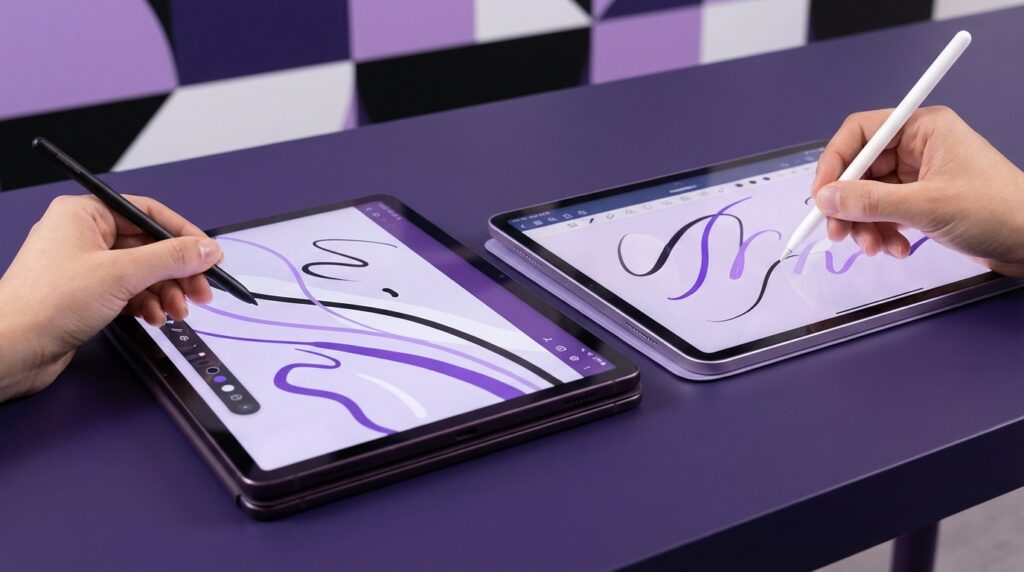
“The faint scratch of a plastic stylus across a resistive screen, that slow blue text trailing behind as your handwriting lagged by half a second.”
You remember that sound, right? That cheap little stick tucked into the side of a PalmPilot or a Windows Mobile PDA. You pressed a bit too hard, the screen flexed, and sometimes the digitizer missed a stroke and your letter “e” turned into something the handwriting engine just gave up on. Fast forward to your S Pen hovering over a Galaxy Tab or an Apple Pencil gliding across an iPad Pro, and it almost feels unreal that both experiences live in the same category: taking notes with a stylus.
Back then, the “note app” was usually just called “Notes” or “Memo.” No pressure curves, no layers, no audio sync. You had a 240 x 320 display, sometimes 16-bit color if you were lucky, running at maybe 60 MHz on a single-core CPU. The stylus felt like hollow toy plastic, light but creaky, like it might bend if you jammed it into the silo too fast. Yet you could scribble on that thing on a flight or in class and feel like you were holding the future in your hand.
Today, that same urge is still there. You want to capture stuff fast. Diagrams, math, meeting notes, random ideas at 1 a.m. The difference is that your S Pen or Apple Pencil feels like a real pen: weight balanced, latency so low you barely see the gap, and palm rejection that mostly just works. The apps sitting behind those taps are where the real magic happens for stylus users. Pressure sensitivity, vector strokes, handwriting search, shape recognition, cloud sync. And every app swears it’s “the one.”
Before we get into which apps work best with a stylus, it helps to understand how we got from scratchy resistive panels to glass slabs that feel almost like paper.
“Retro Specs: ‘256 colors felt like a miracle until you tried to scribble on a 2.8-inch screen with a stylus thicker than your thumbnail.'”
The long road from plastic sticks to precision pens
In the early 2000s, if you cared about stylus input, you were living in the Palm, Pocket PC, or early Windows Mobile world. Those devices used resistive touchscreens: two thin layers that registered a touch when pressed together. The good part was precision. You could tap tiny UI elements with a plastic tip and land right on the pixel. The downside was feel. No real pressure curve, no tilt, and your finger felt terrible on it, so the stylus was basically mandatory.
Those early note apps were simple. Think of apps like Palm’s Memo Pad or PocketPC’s Notes. You got a blank yellowish canvas, maybe ruled lines, and some basic pen colors. The device might have 16 MB of RAM. Saving a page meant compressing the strokes into a tiny file, sometimes as a bitmap, sometimes as vector data. Handwriting recognition was a separate mode, like Graffiti on Palm, where you had to learn a special alphabet.
Phones like the Nokia 7710, first-gen Samsung Omnia, and Sony Ericsson P-series tried to straddle the line between phone and PDA. Stylus in the silo, tiny resistive panel, and a bundled notes app that felt just good enough for a quick shopping list. Those apps rarely cared about pressure. Every stroke was just “on” or “off” and if you lost the stylus, you were poking at it with your fingernail.
Then capacitive touchscreens arrived with the iPhone. Suddenly, the industry swung toward fingers. Early iPhones had no stylus story at all. Most third-party styluses were basically foam-tipped sausages that just convinced the capacitive panel you were touching it. Pressure? No. Precision? Barely. Those “note” apps were finger painting at best.
The real turning point came when stylus tech and OS support started to grow up:
– Wacom and N-trig style digitizers in Windows tablets and some Android devices.
– Samsung’s S Pen on Galaxy Note phones and tablets, built on Wacom tech, with real pressure and hover.
– iPad Pro with Apple Pencil, pairing tight hardware-software design, low latency, and tilt detection.
Handwriting started to feel natural again, but with insane power behind it. Now a note app could:
– Track pen pressure to change line weight.
– Smooth your strokes into vector lines.
– Convert handwriting into text on the fly.
– Sync pages as tiny vector files across devices.
– Throw in audio recording, search, tagging, and export to PDF.
“User Review from 2005: ‘Writing on my Pocket PC feels like real paper, except when it crashes and I lose the last 3 pages of my meeting notes.'”
The problem today is not “can I write with a pen on glass?” That part is basically solved on both iPad and modern Samsung Galaxy devices. The real question: which note-taking app makes your S Pen or Apple Pencil feel like your primary brain extension instead of just a cool gadget you forget about in a week?
What stylus users actually need from a note app
For keyboard-first people, most note apps are just text fields, tags, maybe some Markdown. For stylus users, you care about different things:
– Latency: Does the ink keep up with your handwriting when you are at full speed?
– Stroke feel: Does the line wobble, or does it track cleanly?
– Palm rejection: Can you rest your hand on the glass without random dots everywhere?
– Pressure behavior: Light touch for thin strokes, more pressure for bold, without ugly jumps.
– Page structure: Does the app treat notes like infinite canvases, paged notebooks, or files?
– Search: Can it search your handwriting, not just typed titles?
– Cross-platform: Can you move from tablet to phone to laptop without feeling trapped?
Some apps clearly prioritize S Pen on Samsung devices; others are built ground-up for Apple Pencil on iPad. There are also cross-platform tools that try to keep everyone happy across iOS, Android, Windows, and sometimes the web.
To frame how far we have come, it’s fun to compare a classic like the Nokia 3310 era mindset to something like an iPhone 17 running a modern note app.
| Then | Now |
|---|---|
| Nokia 3310 with basic text notes, no stylus, tiny monochrome screen. | iPhone 17 with 120 Hz OLED, Apple Pencil support via iPad sidekick, rich note ecosystem. |
| Notes stored locally as tiny text files, no sync. | Notes synced across phone, tablet, and laptop via cloud. |
| No handwriting, no drawings, just characters on a grid. | Full handwriting, diagrams, audio sync, live collaboration. |
| Navigation with T9 keypad and arrow keys. | Tap, pan, pinch to zoom, scribble to erase. |
Now let’s talk about the apps that really make a stylus shine, broken down by ecosystem and how “pen-first” they feel.
Best note apps for Apple Pencil users
Apple Notes: the quiet default that got serious
Apple Notes started as the digital sticky note you barely thought about. Yellow notepad texture, basic text, maybe a photo. Then the Apple Pencil showed up, and Apple slowly turned Notes into a surprisingly capable sketchpad.
On a recent iPad with Pencil, the ink engine in Notes feels smooth. Latency is low, pressure response is predictable, and palm rejection is solid. You can scribble with your hand fully resting on the glass, and it just behaves.
Apple did a subtle thing here: it blends typed text and pencil input in the same page cleanly. You can type a meeting outline, then drop into scribble mode to sketch a diagram. You can long-press with the Pencil and start handwriting in the margins or inside boxes.
Key perks for stylus users:
– Handwriting search: Notes can index your handwriting, so your messy “Q4 roadmap” scrawl is still searchable.
– Quick Note: You can swipe from a corner with Apple Pencil to bring up a new note floating on top of whatever app you are in.
– Shape recognition: Draw a rough circle or arrow, hold at the end of the stroke, and it cleans up.
The tradeoff: organization is simple. Folders, subfolders, tags. That is about it. No complex notebook hierarchies, no crazy templates. For a lot of people, that is the charm. Less structure means less friction.
For stylus fans who live inside the Apple ecosystem, Apple Notes is like the reliable ballpoint pen on your desk. It is not flashy, but you grab it constantly.
GoodNotes: the digital notebook that feels closest to paper
If Apple Notes is your free baseline, GoodNotes is the “I bought a real notebook” upgrade. This app leans hard into the notebook metaphor: covers, templates, ruled, dotted, Cornell layouts, planners, and more.
The ink engine in GoodNotes is one of the most loved in the iPad world. Lines feel tight and clean. Pressure curves are tuned so light handwriting looks delicate but still legible, and firmer strokes have a nice weight. You can zoom way in without everything turning into a pixel mush, because strokes are vector.
GoodNotes really shines if you:
– Take lecture notes or class notes with a lot of handwriting.
– Annotate PDFs with the Pencil.
– Use templates for planners, journals, study guides.
Some details stylus users notice:
– Lasso tool: You can circle handwriting, resize it, move it, copy it to another page.
– Shape tool: Quickly create neat boxes and diagrams.
– Handwriting search: It scans your scribbles, so you can search across notebooks.
– Pen styles: Highlighters and fountain-pen style strokes feel distinct.
GoodNotes leans into the idea that your iPad is a binder full of different notebooks perched on your digital shelf. Maybe that is nostalgia talking, because it scratches the same itch as flipping a physical Moleskine, just with search and backups.
Notability: for note-takers who record everything
Notability aims at students, journalists, and meeting-heavy roles that live on recorded audio plus handwritten notes. The magic trick here is audio-synced notes.
You hit record, start writing with the Apple Pencil, and Notability links each pen stroke to the audio timeline. Later, you can tap a word or doodle and jump to that moment in the recording. For lectures or dense meetings, that is huge.
Stylus goodies:
– Smooth ink with solid pressure curves.
– Quick tool switch with a long-press gesture.
– Easy margin writing while recording.
Notability also supports templates, PDF annotation, and organization via subjects and dividers. It feels a bit more like a recording studio for your brain, where your handwriting is one track mixed with audio.
If your note-taking world is full of fast talkers and complex sentences you cannot always capture by hand in real time, this is one of the strongest Apple Pencil combos.
Freeform, Concepts, and the infinite canvas crowd
Not everyone wants bounded pages. Some people think in sprawling whiteboards, mind maps, arrows pointing everywhere. For those brains, infinite canvas apps are the sweet spot:
– Apple Freeform: Apple’s own collab whiteboard. You can write with Pencil, add images, shapes, and invite others. Great for brainstorming and quick visual planning.
– Concepts: A vector-based sketching app with an infinite canvas. Pressure and tilt feel really dialed in. Great for designers, architects, or anyone who likes freeform diagrams with clean lines.
These are not classic “note” apps in the simple sense. They become stylus-first spaces where text is secondary, and layout is everything. If you think in systems and flows, an Apple Pencil on an infinite canvas can feel like the first time you sat in front of a huge whiteboard with a handful of markers.
Best note apps for S Pen users (Samsung & Android)
Samsung Notes: the spiritual successor to PDA memo pads
Samsung leaned into the stylus much earlier than Apple with the Galaxy Note line. That history lives inside Samsung Notes.
You pop out the S Pen and get that little radial menu from the side. One tap, and you are in Samsung Notes, ready to write. The S Pen feels almost anchored to this app.
Stylus-focused features:
– Low-latency ink on Samsung hardware, tuned for the S Pen digitizer.
– Handwriting recognition and conversion to typed text.
– Shape correction to clean up rough sketches.
– Colorful highlighters and calligraphy-style pens.
Samsung Notes also supports:
– PDF imports for annotation.
– Sync across Samsung devices via Samsung Cloud / OneNote bridge.
– Live handwriting search in supported languages.
The feel of the S Pen is different from the Apple Pencil. It is lighter, a bit narrower, and has that clicky side button. The plastic nib gliding on glass has a sound that might take you back to those old PDA days, but with a modern twist. You might not get the same “marker on glass” weight as Apple Pencil, yet precision is excellent.
Many S Pen users just live inside Samsung Notes because it is always there. Screen-off memos, lock screen notes, and deep integration with the rest of One UI means you do not even think about it as a separate app; it becomes part of the device.
Microsoft OneNote: the cross-platform workhorse
If your life is half Windows laptop, half Android phone, half iPad (yes, three halves), OneNote might be your glue.
OneNote feels like a digital binder full of sections and pages. Stylus support is built in on all the main platforms:
– Pressure-sensitive pens.
– Palm rejection.
– Lasso select for handwriting.
– Ink to text conversion.
– Ink to shape for clean diagrams.
On a Galaxy Tab with S Pen, OneNote lets you treat a page as a canvas with mixed handwriting, typed text, and pasted content. If you also work in Word, PowerPoint, and Outlook, the integration feels natural.
It is not the smoothest ink engine compared to something like GoodNotes or native Samsung Notes, but the cross-platform behavior is the big draw. For stylus users who bounce between ecosystems, it is often the least painful compromise.
Squid (Android): the retro-feeling vector notepad
Squid started back when Android tablets were still trying to find their identity. It feels like a love letter to those early stylus days but modernized.
Features that matter for S Pen users:
– True vector ink: Zoom in and your lines stay sharp.
– Pressure-sensitive strokes on supported hardware.
– PDF import and annotation.
– Mixed media pages with images and handwriting.
The UI looks simple, almost utilitarian. There is a sense that this could have run, in spirit, on a 2008 Windows Mobile tablet if the hardware had been ready. If you like a clean, no-nonsense style that focuses on stroke quality and page behavior, Squid is worth a look.
Evernote, Google Keep, and the “pen is a bonus” apps
Apps like Evernote and Google Keep support handwriting, but the stylus story is not at the core.
– Google Keep: Great for quick sticky-style notes, checklists, and scribbles. Pen tools are basic. Good for fast, small sketches or writing a phone number with your finger or pen.
– Evernote: Sketching and handwriting exist, but they feel secondary to typed notes, web clips, and documents.
These apps are fine if you only occasionally grab the S Pen or use your Apple Pencil, but they rarely feel like home base for heavy handwriting users.
Cross-platform stylus-first players
Notion, Obsidian, and the typed-text crowd
Tools like Notion and Obsidian are fantastic for structured, link-heavy knowledge bases, yet they are still very text-first. You can embed images and maybe some sketches, but stylus support is not where these apps shine. If handwriting is the center of your workflow, these are better as destinations for processed, typed summaries rather than raw scribbles.
Nebo: handwriting recognition wizard
Nebo is interesting because it treats your handwriting as the first class input, then converts it intelligently into structured text, math, and diagrams.
On both iPad and compatible Android/Windows tablets with a proper pen, Nebo can:
– Convert whole pages of handwriting to formatted text.
– Recognize math and turn it into proper expressions.
– Turn hand-drawn diagrams into vector diagrams.
– Keep a link between what you wrote and the converted result.
For stylus users in technical fields, this can be huge. Imagine writing equations, mixing in diagrams, and then hitting convert to get a document you can paste into a report.
The ink engine feel is solid, though not as cozy as something like GoodNotes. The focus here is more on recognition accuracy and structure than the romantic side of pen strokes.
“Retro Specs: ‘On my HP iPAQ, I used to write numbers in a tiny input box so the OS could guess them. Nebo feels like that box grew up, lifted weights, and ate a dictionary for breakfast.'”
How stylus workflows differ by platform
The same person using an Apple Pencil and an S Pen will often build very different habits. It is not just the apps; it is the way the OS invites stylus use.
Apple Pencil workflow habits
– The iPad often becomes a dedicated “note slab.” You pick it up when you are ready to focus.
– Apps like GoodNotes or Notability dominate entire sessions.
– Pencil-related gestures, like scribble-to-type in text fields, encourage using the Pencil across the OS.
– The charging and magnetic dock on newer iPads means the Pencil is usually attached, ready, and charged.
Because Apple locks the stylus story to the iPad line, you often end up treating that device as your primary handwriting space, then letting notes sync to phone and Mac for reference.
S Pen workflow habits
– The stylus is always there, docked in the phone or magnetically on a tablet.
– Screen-off memo on Galaxy Note or S series Ultra makes quick capture feel almost like flipping a notebook open.
– Samsung Notes can sync with OneNote, giving a path into the Windows world.
– The lighter S Pen and clicky side button invite hover and quick actions, not just raw writing.
The S Pen lifestyle feels closer to old PDAs and early smartphone stylus habits. Pop it out, jot a quick thing, pop it back in. Shorter bursts of writing, spread across your day, mixed with some longer tablet sessions.
Then vs now: stylus note-taking through time
To show how far stylus note-taking has come, it helps to spotlight one old classic and a modern combo.
| Then: Palm Tungsten T3 with built-in Memo Pad | Now: iPad Pro with Apple Pencil and GoodNotes |
|---|---|
| 320 x 480 resistive LCD, visible pixels and color banding. | High-res 120 Hz panel, near-print text sharpness and fluid motion. |
| Plastic stylus, no pressure, narrow writing box or full-screen scribble. | Pressure and tilt support, full-page and infinite canvas modes. |
| Local-only storage, sync via cable or infrared if you felt brave. | Cloud sync across devices, instant backup to iCloud or other services. |
| Handwriting mostly for visuals; serious notes typed or in Graffiti box. | Full lecture notebooks handwritten, then searched and shared as PDFs. |
| Limited pen colors, no layers, no audio. | Pen sets, layers, templates, audio sync, and linked attachments. |
Looking at that table, the hardware jump feels obvious. What is more interesting is how the software learned to respect handwriting as more than decoration. Old-school memo pads treated drawing as either an afterthought or a completely separate world from typed notes. Modern apps treat stylus notes as first-class content, searchable, convertible, shareable.
Picking the right note app for your stylus style
Different brains want different tools. You can think about it like this:
– If your life is Apple-centric and you like structured notebooks: GoodNotes or Notability, with Apple Notes as your quick capture sidekick.
– If you want audio plus handwriting: Notability with Apple Pencil is hard to beat.
– If you are deep in Samsung Galaxy gear: Samsung Notes first, with OneNote if you need cross-platform and desktop integration.
– If you like infinite whiteboards: Freeform on iPad or apps like Concepts for more design-oriented work.
– If handwriting recognition and math matter: Nebo on whichever platform your pen supports best.
– If you are nostalgic for simpler note apps but want modern sync: Squid on Android has that old-school feel with current tech backing it.
None of these have the same charm as sliding a plastic stylus out of a Palm or tapping around Windows Mobile icons. Yet every time you circle some rushed scribble from last week and watch your app clean up the stroke, search the text, and drop it into a neat PDF, the old PDA geek inside quietly nods.
“User Review from 2005: ‘If my stylus notes could search themselves and sync to my PC without crashing ActiveSync, I would pay anything.’ Today, most note apps give you that by default. Maybe it was just nostalgia talking, but we really were waiting for the hardware and software to catch up to the way our hands already wanted to write.”
