

“The faint hiss of a CRT monitor warming up, the whir of a beige tower PC, and that chunky keyboard that felt like it could survive a meteor strike.”
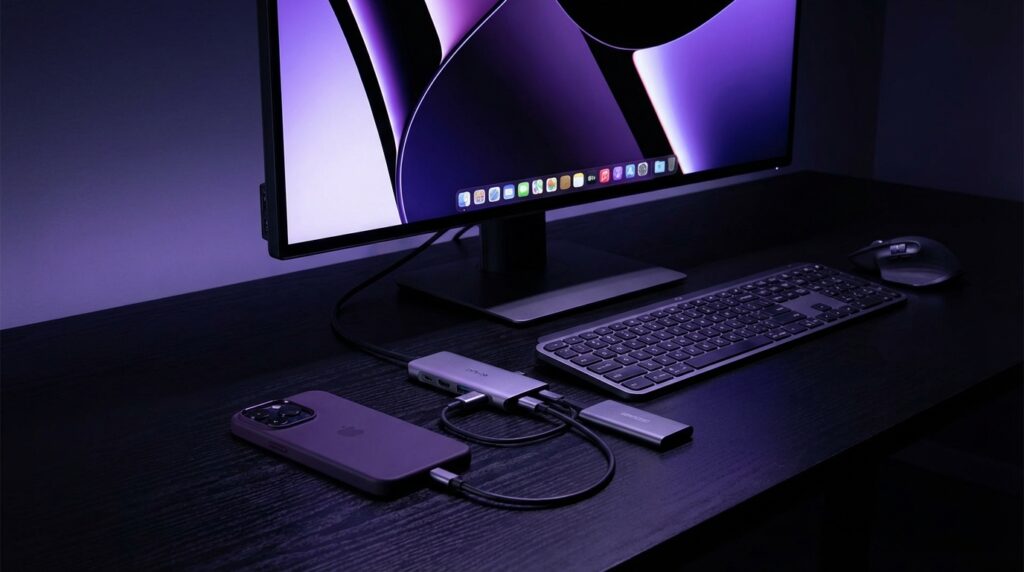
You remember that sound, right? Back when “using a computer” meant sitting in one spot, at one desk, with one machine that owned your whole afternoon. Compare that to now: your phone is the thing you stare at all day, and your “PC” might just be a USB-C hub away. That same feeling of sitting down to a serious setup, but this time the screen is your TV or monitor, the brain is your phone, and the hub is the quiet little bridge doing all the heavy lifting.
What once needed a full tower, a mess of ribbon cables, and a VGA plug that never quite screwed in straight is now hiding behind a single metal slab that weighs less than an old floppy disk. Plug it into your phone, the screen wakes up, your Bluetooth keyboard connects, and suddenly your pocket gadget starts acting like it has a desk job.
This is where things get fun for hardware nerds. Because turning a phone into a “PC” is less about magical software and more about that small piece of gear sitting between your USB-C port and everything else. The hub. The dock. The tiny, boring rectangle that quietly determines if your desktop-style setup feels sharp and fast or slow and glitchy.
Maybe it is just nostalgia talking, but the first time you plug a USB-C hub into a phone that supports desktop mode and a proper monitor lights up, it feels weirdly similar to the first time you booted Windows on a brand new PC. That same sense of “Wait, this thing can really do that?”
The trick is picking the right hub so your phone does not choke the moment you open a few apps, start mirroring 4K video, and charge at the same time. Not every USB-C hub is built for this kind of load, and not every phone speaks the same language when it comes to video output, power delivery, and USB speeds.
We will walk through what to look for, how “phone-as-PC” actually works, and then get into some of the best USB-C hubs for the job. But before that, a little context from the days when “docking” meant dropping your iPod into a plastic cradle on your desk.
“Retro Specs: 2003 ‘all-in-one’ docking station: VGA output, 2 x USB 1.1 ports, a 3.5 mm audio jack, and a proprietary port that stopped working the moment you upgraded your device.”
Back then, these docks felt advanced. Now, your average USB-C hub makes them look like toys.
How Your Phone Pretends To Be A PC
The magic here sits on top of three basic pillars: USB-C, DisplayPort Alt Mode, and a phone that actually supports desktop or extended display output.
USB-C itself is just the plug shape and connector standard. The small oval port feels smooth to the touch, no sharp corners, and it clicks in with a soft, satisfying resistance. But the port alone does not guarantee video output. That is where DisplayPort Alternate Mode (DP Alt Mode) comes in.
Your phone needs to support DP Alt Mode to send video through USB-C to a hub, which then passes it along to HDMI or DisplayPort on your monitor. No DP Alt Mode means no proper external display desktop, no matter how fancy your hub is.
On top of that, you have software layers like:
– Samsung DeX on Galaxy phones
– Motorola Ready For on some Moto devices
– Huawei EMUI Desktop
– Some Android phones that just mirror the screen without a full desktop UI
When it works, you plug your phone into a USB-C hub, the display wakes, and you get a cursor, windows, keyboard shortcuts, and apps behaving more like desktop software. The phone screen can act as a touchpad or just sit there charging.
Then there is power. Phones need juice while doing all this. That is where USB-C Power Delivery (PD) comes into play. A hub with PD passthrough can accept power from your charger, then send it into your phone, while still feeding USB ports, HDMI, ethernet, and more. Get this wrong, and your “PC” dies halfway through a video call.
The Anatomy Of A Good Phone USB-C Hub
Pick up a cheap, no-name USB-C dongle, and you will notice it right away. Light, hollow, plasticky, with a cable that feels like it might fray if you twist it a little too far. Compare that to a solid, metal-bodied hub. Cool to the touch, noticeable weight, tight edges, no flex when you squeeze it.
Those details matter when you are using it as a daily dock for your phone.
Here is what separates a solid “phone-to-PC” hub from a throwaway dongle:
1. Video Output That Matches Your Screen
The core is the HDMI or DisplayPort output. For a desktop-like experience, 1080p at 60 Hz is the minimum. If you have a 1440p or 4K monitor, a hub that supports 4K at 60 Hz feels much sharper for text and UI. Many cheaper hubs claim 4K but only at 30 Hz, which looks choppy for moving windows or videos.
On a phone, 4K60 can push thermals a bit, but for newer flagship devices, it is very usable.
2. Enough USB Ports For Real Work
You want at least two USB-A ports, sometimes more:
– One for a keyboard
– One for a mouse or dongle
– One for storage (SSD, thumb drive, SD card reader)
Some hubs squeeze in USB 3.2 Gen 1 (5 Gbps) and fall back to USB 2.0 on extra ports. For keyboards and mice, USB 2.0 is fine. For drives, that 5 Gbps link makes file transfers less painful.
3. Power Delivery That Keeps Up
If your charger sends 65 W through the hub, your phone does not get all of that. The hub itself draws some power for its logic, ports, and video circuitry. A phone dock hub with 100 W PD passthrough usually provides around 60 to 75 W to the host, which is more than enough for phones and still fine for many laptops if you dual use it.
For phones, anything that supports 25 W or more on PD passthrough covers you for desktop mode plus fast charging.
4. Heat And Throttle Behavior
Run a phone as a PC, drive a 4K monitor, transfer files from a drive, and charge all at once, and that compact metal hub will warm up fast. Some heat is normal. Hot enough that you do not want to hold it for long is a red flag.
Well-designed hubs spread heat across the shell. Poorly designed ones cook the area around the HDMI controller. If the hub overheats, you will see screen flicker, devices disconnecting, or your phone dropping out of desktop mode.
5. Cable Length And Strain Relief
The little tail cable between hub and phone looks boring until it starts tearing at the connector. A phone dock hub does better with:
– A cable long enough to let your phone rest on the desk, not dangle.
– Strong rubber strain relief at both ends.
– Braided or thick jacket that resists kinks.
Again, small detail, big impact when you are plugging and unplugging daily.
“User Review from 2005: ‘The dock works but the connector feels wobbly. I am scared to move my laptop in case the whole thing snaps off.'”
The same complaint lives on, just with USB-C instead of 30-pin or mini-USB.
Then vs Now: Docks From Yesterday Compared To USB-C Hubs
The idea of a “dock” is not new. What changed is the standard port and the expectations for what one connector can do.
| Feature | Early 2000s Laptop Dock | Modern USB-C Hub for Phone |
|---|---|---|
| Main Connector | Proprietary bottom or side dock connector | USB-C with DP Alt Mode and PD |
| Video Output | VGA or DVI, often limited to 1280 x 1024 | HDMI / DisplayPort up to 4K60 |
| USB Speed | USB 1.1 or early USB 2.0 | USB 3.x 5-10 Gbps on key ports |
| Power | Separate power brick for dock and laptop | Single charger through hub with PD passthrough |
| Size & Weight | Big plastic sled, often over 1 kg | Pocket-size, often under 150 g |
| Host Device | Laptop only | Phone, tablet, laptop, handheld PC |
Best USB-C Hubs To Turn Your Phone Into A PC
Now to the actual picks. These are hubs that play well with phones that support desktop or extended display mode, offer power passthrough, and give you that “sit down and work” feel without babying the setup.
I will group them by typical use: clean desk dock, portable travel hub, and “do it all” multiport station.
1. Anker 551 USB-C Hub (8-in-1 Type-C Stand) – Desk-First For Samsung DeX And More
If your plan is to drop your phone next to your monitor and treat it like a tiny desktop, the Anker 551 style hubs are interesting because they double as stands. Picture a solid, weighted base with a hinge. Your phone sits upright, screen visible, instead of lying flat with the cable bent underneath it.
Typical specs in this category:
– 1 x HDMI 2.0 up to 4K30 or 2K60
– 2 x USB-A 3.0 ports
– 1 x USB-C PD input (up to 100 W passthrough)
– SD and microSD card readers
– 3.5 mm audio jack on some models
The body is metal with a cool graphite finish, and the hinge has that firm, clicky resistance when you tilt your phone into place. It feels stable enough to tap the screen without the stand wobbling.
For DeX, Ready For, or other Android desktops, this style hub is nice because:
– Your phone is upright, so you can still use it for notifications, quick replies, or as a second screen.
– Cable routing is cleaner since power comes in through the back of the dock.
– Weight helps keep everything in place when you plug in USB drives or headphones.
Performance wise, running at 1080p60 or 1440p60 is well within range, and 4K30 is acceptable for watching content or using a larger UI. If your main screen is a 1080p monitor, this kind of hub is squarely in the sweet spot.
2. Anker 7-in-1 USB-C Hub – Travel-Friendly Work Pod
If you want something you can throw in a bag with your phone, Bluetooth keyboard, and a folding stand, the compact 7-in-1 hubs are the workhorses.
Common specs on the better ones:
– 1 x HDMI up to 4K30
– 2 x USB-A 3.0
– 1 x USB-C PD input, often up to 100 W passthrough
– SD + microSD card slots
– 1 x USB-C data port on some models
The whole device is usually about the length of a pack of gum, with a short cable that folds back. It weighs just enough to feel solid without pulling on your phone port.
Use case:
– Plug hub into phone
– Plug phone charger into hub for PD
– HDMI into hotel TV or a portable monitor
– Bluetooth keyboard and mouse connected
– You now have a laptop-like setup with almost no weight
For content creators, the SD slots make it easy to move photos and video from a camera onto the phone, edit, and share, all from the makeshift “PC” setup.
“User Review from 2005: ‘I took my whole PC setup in a messenger bag and people thought I was from the future. It was just a mini PC, a folding keyboard, and a projector. Now your phone does all of that with a single cable.'”
The main trade-off here is 4K30 instead of 4K60. On a smaller 4K monitor or TV, you might notice it when scrolling quickly, but for basic work and most media, it is still very usable. If you care more about frame rate for UI smoothness, stick to 1080p60 output.
3. UGREEN 9-in-1 USB-C Hub – Balanced Port Monster
UGREEN’s multiport hubs hit a nice middle ground between size and port count. For turning a phone into a PC, the 9-in-1 style hubs offer:
– 1 x HDMI 2.0 up to 4K60 (on higher-end variants)
– 3 x USB-A (mix of USB 3.0 and sometimes USB 2.0)
– 1 x USB-C PD input up to 100 W
– Gigabit ethernet
– SD + microSD card readers
– 3.5 mm audio jack
The shell has a brushed metal feel, slightly rounded edges, and enough mass that it does not slide around too easily on a desk. The built-in cable is thicker with solid strain relief, which helps when it hangs off a phone dock or stands between a phone and a monitor.
Why it is good for “phone-as-PC”:
– Wired ethernet gives you low jitter for video calls and game streaming.
– Multiple USB ports let you run a full wired keyboard and mouse plus storage.
– 4K60 readiness helps if you are sensitive to how smooth the cursor and scrolling feel.
This kind of hub is also ideal if you want to share it between a phone and a laptop. Phone plugged in: it is your DeX dock. Laptop plugged in: it becomes a small office dock with ethernet and multiple displays.
4. Baseus USB-C Docking Stations – Tiny Desktop Replacements
Baseus dock-style hubs lean a bit more into “desktop replacement” territory, while still being small enough to toss into a bag. Picture a flat, slightly elongated brick with rubber pads underneath, more like a tiny router than a thumb-sized dongle.
Higher end Baseus dock specs often include:
– 2 x HDMI outputs (one 4K60, one 4K30, depending on model)
– 1 x DisplayPort on some variants
– 3-4 x USB-A ports (USB 3.0 + sometimes USB 2.0)
– 1 x USB-C PD up to 100 W
– 1 x USB-C data port
– Gigabit ethernet
– SD + microSD
– 3.5 mm audio
For phone use, you will rarely push multiple displays from a single phone. Many phones limit output to one external display. That second HDMI often sits idle, but it is handy if you also plan to dock a laptop or handheld PC.
The real draw for a phone dock here is the overall stability and port layout. Stick this near your monitor, plug everything in once, and your phone becomes a simple, one-cable client. Drop it in, and you are docked. Pull it, walk away.
Heat handling on these is usually good because the larger surface area spreads it out. Under full load, the body gets warm, like a small power bank under charge, but not scalding.
5. Minimalist Single HDMI USB-C Dongles – For Simple Screen Mirroring
Not everyone wants a full desktop. Maybe you just want to:
– Plug your phone into a TV
– Mirror or extend the display
– Use a Bluetooth controller for games or media
In that case, a simple single-port USB-C to HDMI adapter with PD passthrough is enough.
Specs are bare:
– 1 x HDMI up to 4K30 or 4K60
– 1 x USB-C PD input
That is it. No extra USB ports, no SD, no ethernet. The whole thing often weighs less than the cable itself.
The upside:
– Fewer things to break.
– Less power draw.
– Minimal heat.
– Super small footprint.
These are ideal for things like:
– Presentations from your phone
– Watching videos on hotel TVs
– Cloud gaming on a big screen, using a wireless controller
Just do not expect full “PC replacement” behavior from something with only one port. You will live off Bluetooth for inputs and cloud storage or internal storage for files.
Phone-as-PC: Then vs Now In Practice
To show how far we have come, it is fun to compare an old “portable PC” rig with a modern phone+hub setup.
| Setup | Then: Mid-2000s Portable PC Rig | Now: Phone + USB-C Hub Desktop |
|---|---|---|
| Main Device | Thick laptop or mini PC, often 1.5-3 kg | Smartphone, ~200 g |
| Docking Hardware | Large proprietary dock or VGA adapter | USB-C hub, 50-150 g |
| Ports Needed For ‘PC Feel’ | Power brick, VGA, USB mouse, USB keyboard | Single USB-C to hub; keyboard and mouse often wireless |
| External Display | 15-17 inch LCD, often 1280 x 800 | TV or monitor, often 1080p or 4K |
| Boot / Start Time | 30-60 seconds from cold boot | Instant desktop mode on connection |
| Carry Weight | 3-5 kg bag | Under 1 kg total with keyboard and portable display |
The thing I love here is that the hub is now the silent star. In the old stack, everything was visible: the giant power brick, the tangle of cables, the brick-shaped VGA adapter. Today, the hub is a small, dense object that does more with less volume and fewer chips, sitting quietly off to the side.
Picking The Right Hub For Your Phone
Before you buy anything, step one is to check what your phone can actually do through USB-C.
Check For Desktop Mode Or Video Out Support
Not every phone supports DeX or equivalent modes. For Android:
– Samsung Galaxy S / Note / many A series: Samsung DeX, both wired and wireless on newer models.
– Motorola higher tiers: Ready For.
– Huawei / Honor older models: EMUI Desktop.
– Some others: basic screen mirroring or no wired DP Alt Mode at all.
Search “[your phone model] DisplayPort Alt Mode” or “[your phone model] desktop mode” to confirm. If the phone does not support DP Alt Mode, a hub will only work for data and power. No display.
Know Your Power Needs
If you have a flagship phone that charges at 25-45 W on USB-C PD, grab a charger that matches or exceeds that and a hub that supports 60-100 W passthrough. The hub will take a slice, and your phone will still get a strong charge.
If your phone only takes 18-25 W, a 45-65 W PD passthrough hub is already ahead of your needs.
Keyboard, Mouse, And Latency
For a proper PC-like feel, latency matters more than fancy RGB. You have three main paths:
– Wired keyboard + mouse via USB-A on the hub: lowest latency, no pairing step.
– 2.4 GHz dongle combo in one USB-A port: simple and portable.
– Bluetooth keyboard + mouse direct to phone: fewer cables, depends on phone radio quality.
Hubs with more USB-A ports give you more flexibility. If you have only one, the 2.4 GHz dongle combo is your friend.
Ethernet Or Wi-Fi
If you are planning to run:
– Cloud desktop
– Cloud gaming
– Heavy video calls
You will feel the difference between Wi-Fi and wired, especially on noisy networks. A hub with Gigabit ethernet lets your phone behave more like a wired PC. Plug in, and many phones will auto-switch to ethernet as the primary connection.
Use Cases Where USB-C Hubs Shine
The “Laptop Replacement” Scenario
Minimalist setup:
– Phone with DeX or similar
– USB-C hub with HDMI, 2+ USB-A, PD
– 24 inch 1080p monitor
– Wired or wireless keyboard and mouse
– 45-65 W USB-C charger
You get browser-based work, Google Docs, Office apps, email, chat, media playback, and basic photo editing. For many people who mainly live in cloud apps, this is plenty.
The difference from an actual laptop is not the power. Recent phones have serious CPUs and GPUs. It is the desktop OS maturity and app behavior. Some Android apps just do not scale nicely to external screens yet. That experience varies by app and vendor.
Portable Content Creation Pod
Creators can use hubs to:
– Import from SD card to phone storage using the hub’s reader.
– Edit in mobile apps (LumaFusion, CapCut, Lightroom).
– Output to a larger monitor for color checking and timelines.
Here, a hub with SD + microSD and at least one fast USB 3.0 port is the sweet spot. You can plug in an external SSD for project storage, keep your phone as the editing brain, and use the monitor plus keyboard shortcuts for finer control.
Media And Gaming Station
For media:
– Simple hub with HDMI + PD to TV
– Bluetooth gamepad
– Wireless headphones
Open Netflix, YouTube, or a local video app, and the phone becomes an invisible streaming box.
For gaming:
– Cloud services like Xbox Cloud Gaming or GeForce Now through the browser or app.
– Local Android games that support controllers.
– Emulation of retro systems, with the phone doing all the compute.
Latency, again, is where ethernet and proper HDMI 4K60 support matter. A lower-end hub may introduce occasional flicker if it heats up, which you do not want mid-game.
Phone Dock Hubs vs Desktop Docking Stations
You might wonder if you need a full-on desktop docking station or if a small hub is enough.
| Feature | Phone-Focused USB-C Hub | Full Desktop Docking Station |
|---|---|---|
| Port Count | 5-10 ports, compact | 10-15+ ports, larger body |
| Power | Relies on external charger via PD | Often has built-in power supply |
| Display Support | Usually 1 external screen for phones | Up to 2-3 displays with laptops |
| Heat & Size | Smaller, warmer under full load | Larger, more room for cooling |
| Best Use | Travel, compact desk setups | Permanent desk, multi-device setups |
For most phone users who want a “PC” feel, a medium-sized USB-C hub with HDMI, PD, and a few USB-A ports is perfect. Full docking stations are overkill unless you also want to use them for a laptop and multiple monitors.
Compatibility Quirks And Gotchas
This is where nostalgia from older tech sneaks back in. We used to deal with “This dock only works with this model.” Now, we run into:
– Phones that only support DisplayPort 1.2 over USB-C, which can limit resolution and refresh rate.
– Hubs that share bandwidth between USB ports and HDMI, so if you transfer data at high speed, the display might drop from 4K60 to 4K30.
– PD passthrough that negotiates incorrectly, resulting in slower charging than expected.
“Retro Specs: 2005 universal dock disclaimer: ‘Full functionality not guaranteed with all models. Some features may require firmware update that is no longer available.'”
Modern version: read the small print on the hub spec sheet and look for real-world tests with the same phone model you own. Reviews and Q&A threads often reveal edge cases, like “Works with DeX but not with 1440p monitor at 60 Hz” or “Ethernet works, but only after reconnecting twice.”
A few general guidelines:
– If you care about 4K60, look for explicit mention of HDMI 2.0 (or higher) and 4K60 support.
– For phones, 1080p60 often gives the best balance of load and clarity.
– If your hub has too many things plugged in and you see flicker, try unplugging storage or lowering display resolution to see if it stabilizes.
The Feel Of A Good Phone Desktop Setup
When everything clicks, the experience has its own rhythm:
– The faint clack when the USB-C plug seats in your phone.
– A second of silence, then your monitor blinks from black to desktop UI.
– Your keyboard wakes with a tap, mouse LED glows, ethernet lights blink softly on the hub.
There is something familiar in the ritual, even if the hardware is completely different from that beige PC from years ago. Back then, the tower hummed and the fan noise told you the system was alive. Now, the tiny metal hub gets a bit warm, and the single cable into your phone is the only visible “link” to your PC brain.
Maybe it is nostalgia, but that quiet shift from pocket device to workstation still hits like your first real upgrade from a family shared PC to your own machine. Only this time, the main upgrade is not a bigger tower or a faster GPU. It is a small, dense rectangle hanging off a USB-C port, quietly letting your phone pretend it has always been a desktop.
