

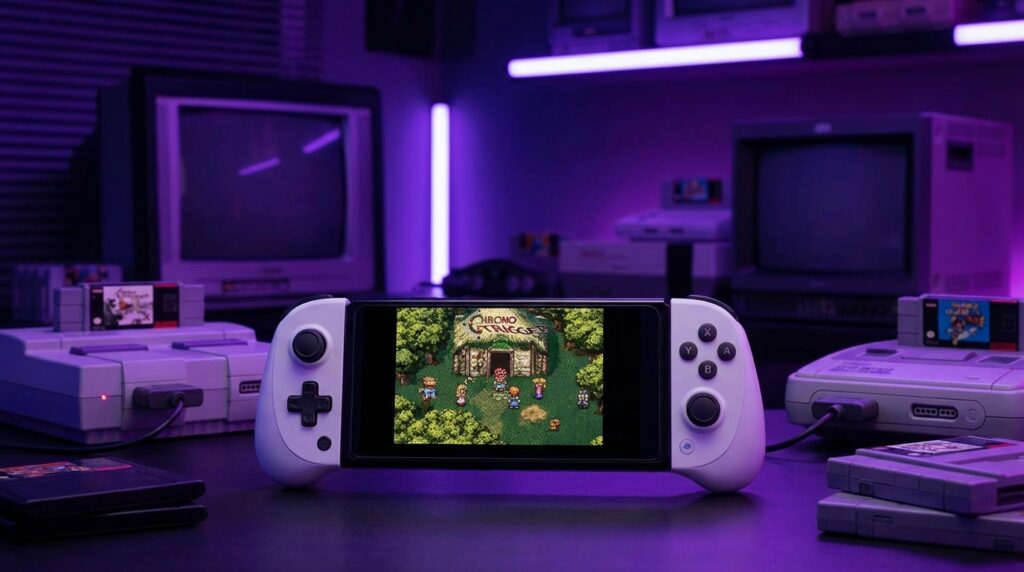
“The faint hum of a CRT TV, that gray static between channels, and the chunky plastic click of a D-pad that had seen way too many Street Fighter matches.”
You remember that sound, right? The TV in the corner, the console that weighed almost as much as your old VCR, and that weird moment when your cartridge only worked if you pushed it in at the perfect angle. Now you are holding an Android phone that is thinner than a PS1 memory card and about a hundred times faster than the consoles we grew up with. That is the jump we are talking about when we say “emulation on Android”. You go from blowing into cartridges to tapping an icon, from tangled controller cables to Bluetooth pads, from 240p blur to crisp OLED.
The funny thing is, the emotional weight has not changed. You fire up a SNES emulator, the startup jingle hits, and suddenly you are sitting on the floor again, too close to the TV, ignoring that low-res headache. Emulation on Android is not only about playing old games for free. It is about preserving how those games felt, how the UI looked, how the music sounded when the sound chip clipped a little at high volume. Maybe it is just nostalgia talking, but that first boot screen on your phone can feel more real than any 4K remake trailer.
Back in the early 2000s, if you wanted to emulate a console on the go, you needed a chunky PDA or a hacked PSP. You worked around underpowered CPUs, terrible screens, and storage that could barely hold a single game ISO. Today, your mid-range Android phone has a multi-core processor that could run circles around a Nintendo GameCube. The panel in your pocket has more pixels than your entire bedroom had across every screen in 2003. That is why emulation on Android feels almost casual now. You grab RetroArch or Dolphin, map some buttons, pair a controller, and suddenly your phone thinks it is a SNES, a PS1, or even a GameCube.
Still, under that smooth app icon and friendly interface, there is a lot going on. Emulation is not magic. Your phone is pretending to be custom chips from the 80s and 90s, translating their instructions in real time, faking scanlines, stretching 4:3 to fit your tall 20:9 screen, and juggling audio sync so the music does not stutter. You feel the lag if something is off. You see the texture flicker if the graphics plugin is wrong. That tension between smooth mobile comfort and old-school quirks is where the fun lives.
For this whole thing to make sense, it helps to remember what those systems actually were like. Chunky plastic, low clock speeds, no online, controllers that creaked if you held them too tight. Your Android phone is the opposite: glass slab, touch everything, constant network, buttons only when you bring in a controller. Emulation on Android is you asking this sleek gadget to put on a retro costume and act like it has a cartridge slot.
“Retro Specs: The Super Nintendo packed a Ricoh 5A22 CPU running at roughly 3.58 MHz, 128 KB of RAM, and maxed out at 256 x 224 resolution. Your phone today eats that for breakfast while playing Spotify in the background.”
How Emulation Actually Works On Your Android Phone
Before tapping download on the first emulator you see, it helps to understand what your phone is doing behind the scenes. Think of a console as a bundle of custom chips that speak a very strict language. An emulator is a translator that sits in the middle, matching every instruction from that old console to something your Android CPU and GPU can understand.
On Android, you usually have three layers in play:
1. The emulator core (the part that mimics the CPU, GPU, sound chip).
2. The front-end UI (the menus you see, game lists, settings screens).
3. Android itself (input handling, graphics APIs like OpenGL ES or Vulkan, storage permissions).
When you press A on your Bluetooth controller, that input travels through Android, then the emulator, then gets mapped to whatever the console thought “A” was. This all happens in milliseconds. If it slips past about 50 or 60 milliseconds, your brain starts to feel weird lag when you jump or fire in-game.
That is why some emulators feel smooth and others feel like you are playing under water. Coding accuracy matters. Settings matter. The chipsets inside your phone matter. The gap between a budget phone and a flagship sometimes shows the moment you move into heavier consoles like PSP, GameCube, or PS2.
Then vs Now: Your First Brick Phone vs Your Android Emulator Beast
To put power in context, think about the old phones we used to carry compared to what you have now. Time for a quick comparison table.
| Spec | Then: Nokia 3310 (2000) | Now: Modern Android Flagship |
|---|---|---|
| CPU | Single-core, under 100 MHz, no GPU | Octa-core, ~3 GHz big cores, dedicated GPU with multiple cores |
| RAM | About 1 MB | 8 GB to 16 GB |
| Storage | About 1 MB internal, no media files | 128 GB to 1 TB, microSD on some models |
| Screen | 84 x 48 monochrome | 2400 x 1080 or higher, OLED or high refresh LCD |
| Games | Snake, pre-installed only | Console emulators, full 3D titles, cloud streaming |
| Battery | 900 mAh removable | 4500 to 5000 mAh fast-charging lithium |
That bump in raw power is why your phone can pretend to be a SNES, a PlayStation, and even a GameCube all in one. The trick is picking the right emulator and tuning it so your device does not get uncomfortably warm after five minutes.
Legal Stuff: What Is Actually Okay To Do
Before we get into apps and settings, you need clarity about the legal side. Emulation itself is not illegal. The emulator code is usually original work that just mimics hardware behavior. The gray area shows up when we talk about BIOS files and game ROMs or ISOs.
Here is the general idea:
– Emulators: Usually fine to download and use.
– BIOS files: These are firmware dumps from real consoles. Many systems need them. You are supposed to dump them yourself from hardware you own.
– ROMs/ISOs: Game files. The clean approach is to dump your own cartridges and discs.
I am not your lawyer. I am just the geek who remembers downloading ROMs over dial-up, setting the transfer overnight, and praying no one picked up the house phone. From a practical point of view, keep your setup focused on games you own, do not reshare files, and be careful with random ROM sites. Many of them pack malware or fake downloads.
Picking The Right Emulator On Android
Android has a lot of emulators, and they are not equal. Some are single-system apps, others are multi-system front-ends that load “cores” for each console.
Multi-system: RetroArch
RetroArch is like the Swiss Army knife of emulation. It is not a single emulator. It is a front-end that loads cores for dozens of systems.
You get:
– NES, SNES, Game Boy, GBA
– Sega Genesis / Mega Drive, Master System, Game Gear
– PS1
– Some arcades and more
The upside: one app, consistent UI, unified settings, shaders, overlays. The downside: the interface can be confusing at first, and setup takes patience.
The process usually looks like:
1. Install RetroArch from the Play Store or their site.
2. Open it and download cores for the systems you care about.
3. Point RetroArch to your “ROMs” folder.
4. Map controls, tweak video and audio settings.
5. Run content.
RetroArch gives you nice features like save states, rewind on some systems, shaders that fake CRT scanlines, and run-ahead to reduce lag. On a modern phone, 16-bit systems and PS1 through RetroArch are very smooth if you pick the right core.
Single-system Emulators
Some consoles run better under apps built only for them. A few examples you see on Android:
– NES/SNES: NES.emu, Snes9x EX+
– GBA: My Boy! and open source ports like mGBA
– PS1: DuckStation
– PSP: PPSSPP
– GameCube/Wii: Dolphin MMJR or official Dolphin builds
– PS2: AetherSX2 (development has been rocky, but you still see forks)
These apps often give you a cleaner interface, custom features, and more direct control over performance. For example, PPSSPP has per-game settings, texture scaling, and a nice touch control layout editor.
“User Review from 2005: ‘I got SNES working on my Pocket PC but it’s running like 10 FPS and the sound is all broken. Still worth it to have Mario World in my pocket.'”
That old review describes what early mobile emulation felt like: experimental, barely playable. On Android today, many of these systems run at full speed, even with filters and upscaling.
What You Actually Need Before You Start
To get an Android emulation setup that feels comfortable, think about four pieces of gear.
1. The Phone
You do not need a flagship to emulate NES or SNES. For those, almost any modern phone works. Once you step into N64, PSP, GameCube, or PS2, hardware matters.
Look for:
– A recent mid-range or flagship chipset (Snapdragon 7 or 8 series or similar).
– At least 4 GB of RAM, 6 GB or more if you want heavier consoles.
– Decent cooling. Thin phones heat faster, and thermal throttling kills performance.
2. Storage
Retro games can be tiny or huge.
– NES/SNES/GBA: usually under 8 MB per game.
– PS1: 300 MB to 700 MB per disc.
– PSP: 500 MB to a few GB.
– GameCube/PS2: 1 GB to 4 GB per game.
If you plan to keep many disc-based games, you want extra storage. A 128 GB phone fills fast once you add video, photos, and apps. Offloading your ROMs and ISOs to a microSD card or external USB-C drive can keep things tidy.
3. A Controller
Touch controls work for slower RPGs and puzzle titles, but the moment you try a tight platformer or a fighter on a glass slab, you feel the problem. No tactile feedback. Your thumb slides, you miss buttons, you cover half the screen.
To fix that:
– Bluetooth controllers: Xbox, PlayStation DualShock/DualSense, 8BitDo, or Android-specific pads.
– Clip or grip: a phone clip that attaches the phone to the controller helps balance.
– USB controllers: some wired pads work through USB-C OTG.
Many Android emulators auto-detect controllers. You still need to map buttons once, but after that it feels like a regular console.
4. Optional: Headphones
Old game audio pops in a nice way through headphones. The beeps, the crunchy samples, the reverb tricks from SNES or PS1 sound chips all come through clearer. Also, your family probably does not want to hear the same battle theme in a loop for two hours.
Step-by-Step: Emulating Retro Consoles On Android
Now it is time to go from theory to practice. I will stick to legal phrasing, but you will get the idea.
Step 1: Install Your Emulator(s)
Start simple. Grab:
– RetroArch for 8-bit/16-bit and PS1.
– PPSSPP for PSP.
– DuckStation for PS1 if you want a less complex UI.
– Dolphin for GameCube/Wii if your hardware can handle it.
Install from the Play Store or from trusted official sites. Some advanced builds live outside the store.
Step 2: Prepare Your Game Files
The clean route:
– For cartridges: use hardware like a Retrode or similar dumping device on a PC, then copy the ROM files to your phone.
– For discs: use a PC with a disc drive and dumping tools to create ISO or BIN/CUE images.
Once you have your files, organize them on your phone like this:
– /ROMs/NES
– /ROMs/SNES
– /ROMs/GBA
– /ROMs/PS1
– /ROMs/PSP
– /ROMs/GC
– /ROMs/PS2
This might feel obsessive, but future you will be thankful when you scroll through a clean folder tree.
Step 3: BIOS Files (For Systems That Need Them)
Some consoles will not boot games without BIOS firmware. PS1, PS2, and some others often need a proper BIOS file.
High-level view:
– Dump BIOS from your own console using homebrew tools.
– Save the dumped file, copy it to your phone.
– Place it in the BIOS folder of your emulator, or point the emulator to it in settings.
For example, DuckStation and RetroArch both have BIOS paths in their config screens. Once your BIOS is detected, games start to behave correctly, and you see the familiar boot logos.
“Retro Specs: The original PlayStation BIOS boot sequence runs off a 33.87 MHz RISC CPU and a fixed audio jingle. Emulators re-create this dance of code and sound byte by byte to match timing and behavior.”
Step 4: Map Your Controls
Take a few minutes to set your buttons properly. It pays off.
On a controller:
1. Open the emulator.
2. Go to input settings.
3. Choose “configure gamepad” or similar.
4. Press each button when prompted, match A, B, X, Y, shoulder buttons, select, start.
On touch:
– Resize and reposition on-screen buttons.
– Increase transparency so you can still see the game.
– For smaller phones, keep controls close to the edges so your thumbs reach easily.
If your emulator supports per-system layouts, tweak each once. A SNES game needs fewer buttons than a PS1 game. Super crowded on-screen controls make your fingers feel cramped.
Step 5: Tune Video Settings
Here is where most people either get smooth results or end up fighting lag and glitches. The temptation is to crank everything up. HD textures, high internal resolutions, heavy shaders. Your phone might handle some of that, but the mellow approach is to start low and climb.
General tips:
– Resolution: For 2D systems (NES/SNES/GBA), native resolution is enough, maybe 2x scale if your phone handles it. For PS1/PSP/GameCube, try 1x or 2x before pushing higher.
– V-sync: Turning it on can reduce tearing, but may affect input lag. Try both ways.
– Shaders: CRT filters and smoothing shaders can look amazing. They also cost processing power. Start without them, then add mild CRT or scanline shaders if your frame rate stays at 60.
– Aspect ratio: 4:3 or original ratio usually looks better than stretching to full screen.
RetroArch also has “run-ahead” to reduce input lag by pre-processing frames. Used moderately, this can make old games feel more responsive.
Step 6: Adjust Audio
Audio cracks and stutters usually mean your CPU is struggling.
– Keep audio latency at a balanced value. Too low and it cracks, too high and you notice delay.
– Avoid heavy audio filters.
– If your emulator allows, match audio sample rate closely to the original console.
SNES and PS1 games rely heavily on music to create mood. Once you get smooth audio, everything clicks.
How Far Can You Push It? Console-by-Console Feel
Every system has its own quirks on Android. Here is how they usually behave on a decent modern phone.
NES & SNES
These are the comfort zone. On any recent phone:
– Instant boot.
– Full-speed emulation.
– Save states and rewind with no issues.
– CRT filters run fine.
Play Super Mario World with a light scanline shader and a Bluetooth pad and it feels clean. The phone barely gets warm.
Game Boy, Game Boy Color, GBA
Portables tend to feel perfect on a phone. Their original resolutions are low, so scaling is gentle.
– GBA: games run at full speed easily, fast-forward for grinding is smooth.
– Some emulators add color correction for GBA to mimic the original washed-out LCD look, if you want extra authenticity.
The weight difference is funny: a real GBA with AA batteries had a kind of hefty feel. Your phone has the mass of glass and metal, cooler to the touch, no cartridge sticking out.
Genesis / Mega Drive, Master System, Game Gear
These Sega systems run well on Android. Classic Sonic titles at 60 FPS with proper sound bring that exact sense of speed you remember. Many emulators support region and sound variants so you can pick between YM2612 audio flavors.
PlayStation 1
PS1 on Android is in a great place. DuckStation and RetroArch cores handle:
– Full-speed 3D rendering on mid-range phones.
– Texture filtering if you want slightly cleaner visuals.
– Original resolution for authentic jaggies.
If you upscale too much, old models start to show their blockiness in a harsh way. Keeping it around 1x or 2x internal resolution feels like PS1 on a really good CRT.
Nintendo 64
N64 is trickier. Some titles run perfectly, others fight back with glitches.
– On strong phones, Mario 64 and Ocarina of Time run smoothly.
– More complex games might show texture issues or slowdowns.
– Choose plugins or cores carefully; some focus on accuracy, others on speed.
Touch controls for N64 analog sticks feel rough. A controller helps a lot here.
PlayStation Portable (PSP)
PPSSPP is one of the shining stars on Android.
– Many games run upscale at 2x or 3x resolution on strong phones.
– Texture scaling can clean up blurry assets.
– Save states, control remapping, and per-game configs keep things comfortable.
Your phone’s screen often beats the original PSP in every category: brightness, resolution, color. You give up the chunky feel of that original PSP shell, but gain clarity.
GameCube & Wii
GameCube/Wii emulation is where your phone’s power really matters.
– On a flagship phone, some GameCube games hit full speed at native or a bit higher resolution.
– More demanding titles stress the GPU and cause heat.
– Wii games need motion controls in some cases, which can be a pain on a phone.
Playing Wind Waker or F-Zero GX on a 6-inch OLED in your hand feels strange. You remember that tiny purple cube under your TV, the weighty controllers with analog triggers, and now it is all lines of code in your pocket.
PlayStation 2
PS2 emulation on Android is possible on high-end phones, but not perfect.
– Some games work well; others are very slow or glitchy.
– Expect to lower internal resolution, disable heavy effects, and experiment with speed hacks.
If PS2 is your main goal, go in with patience. The phone is strong, but PS2’s architecture is complex.
Then vs Now: Retro Console vs Android Phone As A Console
It is helpful to think about your phone itself as a console. How does it compare to an actual retro box under a TV?
| Feature | Then: PlayStation 2 | Now: Android Phone (Used As Console) |
|---|---|---|
| CPU | Emotion Engine at ~294 MHz | Octa-core CPU up to ~3 GHz |
| RAM | 32 MB main, 4 MB video | 8-16 GB shared |
| Storage | DVD discs, memory card saves | Internal flash, microSD or external drives |
| Display | External TV, usually 480i CRT | Integrated 1080p+ touchscreen, HDMI out to TV on some models |
| Controllers | Wired DualShock 2 | Bluetooth or wired pads, touch as backup |
| Portability | Needs power outlet and TV | Battery powered, pocketable |
That jump is not only spec numbers. It is how you use the device. The PS2 lived in a fixed spot, near your TV, with discs stacked nearby. Your phone goes on trains, into coffee shops, on your bed, at your desk. Emulation turns those dead spaces into mini retro sessions.
Making Emulation Feel Authentic, Not Just Convenient
If you care about the vibe as much as the frame rate, your choices matter. Some settings push you away from how the games were meant to look. Others bring you closer.
Visual Feel
Original consoles expected CRTs. Those screens hid jaggies with natural blur, softened color bands, and added subtle glow.
To mimic that:
– Use light scanline shaders.
– Add a mild CRT mask if your emulator supports it.
– Avoid heavy smoothing that turns pixel art into mush.
On a sharp smartphone display, a slight shader can actually feel closer to what your eyes remember. Without it, some sprites look too blocky and harsh.
Controls And Tactile Memory
One of the reasons people buy retro controllers for phones is not just layout; it is feel. You remember the travel distance of SNES buttons, the stiffness of Genesis D-pads, the rumble in N64 or PS2 controllers.
Modern Bluetooth pads cannot perfectly match that, but some brands come close. 8BitDo, for instance, copies shapes from older pads. When that plastic shell rests in your hand, and you feel that specific D-pad pivot, your brain connects the dots more quickly than with a generic flat controller.
Audio Nostalgia
Some emulators allow lowpass filters or reverb options that mimic old TV speakers. You can play games in full high-fidelity audio, but the slightly muffled, bass-limited sound through a pretend TV profile often hits closer to memory.
Headphones or a small Bluetooth speaker help a lot. Phone speakers tend to be too harsh for some of the harsher chiptunes at high volume.
“User Review from 2005: ‘These new LCDs look sharp but something about the games feels off. I kinda miss the blur on my old TV when I spin-dash in Sonic.'”
You see the pattern. Sharp is not always better. You want the right kind of sharpness.
Battery, Heat, And Longevity
Emulation at high settings stresses your phone more than scrolling social media. Those extra frames, upscales, and shaders keep the CPU and GPU busy.
To keep your device happy:
– Keep brightness reasonable; OLED at max burns battery.
– Use lower internal resolution on heavy systems like PSP or GameCube.
– Avoid gaming while charging if your phone already feels warm.
If you feel the back getting uncomfortable, that is your cue to drop settings or take a break. These are still phones, not dedicated consoles with custom cooling.
Organizing Your Digital Retro Library
The coolest part of emulation on Android is seeing your entire history in one scroll. But without some structure, it turns into chaos.
Simple tips:
– Use consistent file naming. “System – Game Title (Region).ext”
– Split by system folders as mentioned earlier.
– Keep box art images in matching folders if your front-end supports media scraping.
Some emulators let you display cover art grids. Seeing the SNES box for Chrono Trigger next to the PS1 disc art for Final Fantasy VII gives that digital shelf feeling. You cannot smell the cardboard or plastic, but you at least see the artwork that framed your first playthrough.
From Ringtones To Retro Soundtracks On The Same Device
Back when polyphonic ringtones felt high-end, the idea of playing full console soundtracks on a phone seemed wild. You had tiny speakers, low storage, and basic audio chips. Today, your Android phone can run a SNES emulator and play the soundtrack through lossless audio while you record the whole session.
It is a strange fusion. That same device that pings you for work email, shows TikTok, and controls your smart lights is now running a near-perfect recreation of 16-bit era RPGs. The plastic slab in your hand is smaller and lighter than any old console, but it holds decades of gaming history at once.
You launch RetroArch, pick a core, scroll to that one game your cousin brought over one summer, and hit start. For a second, all the modern stuff fades. No patches, no DLC, no day-one updates. Just a boot screen, a logo, and a few kilobytes of save data waiting right where you left them.
