

“The soft thud of a flip phone closing, the tiny vibration before a polyphonic ringtone, and that one T9 message that felt like it took a whole afternoon to type.”
You remember that sound, right? Back then, automating your life meant setting one of those old-school Nokia alarms and hoping the battery did not give up overnight. Now your phone has more power than your old laptop, yet you still find yourself opening the same apps, tapping the same buttons, and swiping through the same menus every single day. That is where Tasker comes in. It takes that modern slab of glass in your pocket and turns it into something closer to those “smart” gadgets we used to dream about while staring at green backlit screens.
Tasker is what many Android users install, open once, stare at in confusion, then quietly uninstall. It looks like a control panel from a 2005 sci-fi movie, full of tiny icons, profiles, contexts, and actions. It does not hold your hand. Which is exactly why beginners think it is only for hardcore geeks. But the idea behind it is very simple: “If this happens, then do that.” The same logic you used when you set your old phone to silent at night and loud during the day, only now you can connect almost every sensor, every app, every state of your device.
Maybe it is just nostalgia talking, but Tasker feels like the spiritual successor to those custom ringtones, hidden service codes, and Java apps we used to sideload over infrared. There is that same joy when something small just works: your phone speaks your next meeting when you plug in your headphones, your house lights dim when you start Netflix, your battery saver kicks in when you hit 15 percent without you doing anything.
“Retro Spec: ‘My Nokia 3310 knew exactly one kind of automation: the alarm. It worked, but you had to do the rest yourself.'”
For the first 300 words, let us stay in that world for a second. Think about the physical feel of those devices. The weight of a Nokia 1100 in your hand, solid and reassuring, with that rubber keypad you could press blind. The tiny monochrome screen that never tried to multitask. It had one job at a time. You wanted to send a message, you went into “Messages”. You wanted to play Snake, you went into “Games”. No background services, no battery optimization settings, nothing happening quietly without you.
Automation back then was mechanical. You built routines in your head: phone on the desk at work, vibrate on; phone in your pocket on the bus, ringtone on; phone on the nightstand, silent and face down. Your brain was the operating system. You handled context switching by habit and muscle memory.
Then came early smartphones. Resistive touchscreens, styluses, laggy menus. Some devices had “profiles” you could switch between: General, Silent, Meeting, Outdoor. A little more flexible, but still manual. You were the “Tasker” in that relationship. Every new setting needed your attention.
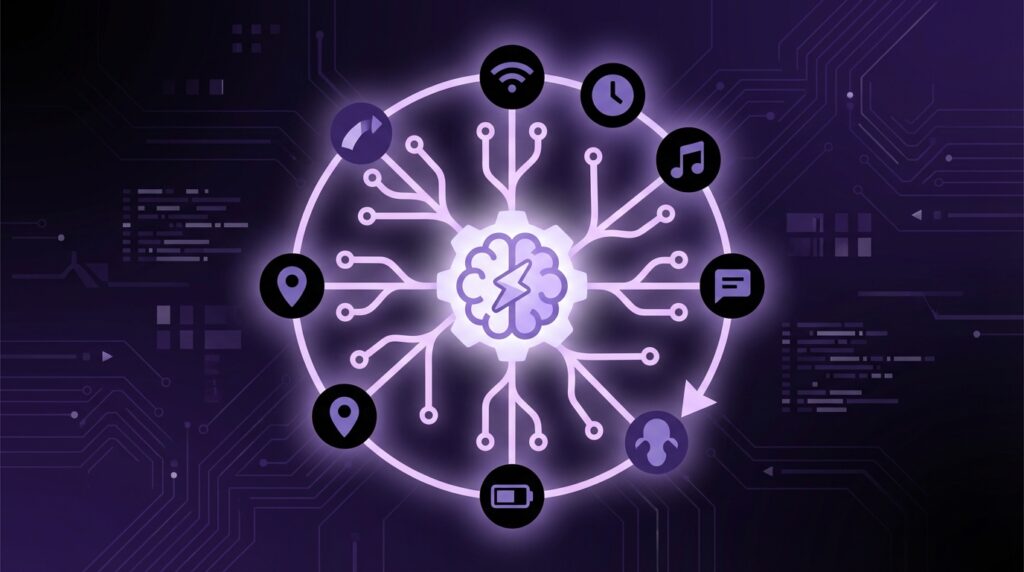
Today, your phone has Wi-Fi, Bluetooth, GPS, NFC, accelerometers, gyroscopes, proximity sensors, and more. It knows where you are, if you are moving, what you are connected to, and which apps you use the most. Tasker is the bridge between that raw potential and actual behavior that fits your life.
From Ringtones to Routines: Why Tasker Exists
Tasker is an Android app that lets you create “if this, then that” style automations on your device. No cloud accounts, no third-party service in the middle. Everything runs locally on your phone. You define:
– A trigger (Tasker calls these “contexts” inside a “profile”)
– A set of actions (this group is called a “task”)
When the trigger is true, Tasker runs the task. That is it. Under the hood there are dozens of trigger types and hundreds of possible actions, but at the core, the model is simple.
If Wi-Fi disconnects, then lower screen brightness and turn off sync.
If I plug in headphones, then launch Spotify and set volume to 60 percent.
If time is 10:30 PM and I am at home, then enable Do Not Disturb and turn off mobile data.
You are teaching your phone conditional behavior. Not gimmicks, but small, repeatable workflows. The exact routines you are already doing manually.
“User Review from 2005: ‘Imagine if my phone could switch to silent by itself when I’m in class. That would be witchcraft.'”
Back in the mid-2000s, that kind of behavior sounded like science fiction. Today, Android does offer built-in routines: focus modes, driving detection, bedtimes. But those are templates built for the average user, and you are probably not average if you are reading a guide on Tasker. You want more control, more nuance, and sometimes, more weird experiments.
But before we build anything, it helps to anchor where we came from.
The Then vs Now of Phone Automation
Let us stack one of the classics against what we carry today.
| Feature | Nokia 3310 (Then) | iPhone 17 / Modern Android (Now) |
|---|---|---|
| Display | 84 x 48 pixels, monochrome | ~2796 x 1290 or more, OLED, high refresh |
| Input | Physical T9 keys, 4-way nav | Multi-touch screen, voice, gestures |
| Default Automation | Alarms, basic profiles | Focus modes, Shortcuts, Bixby Routines, Google Routines |
| Connectivity | 2G, SMS, no Wi-Fi | 5G, Wi-Fi 6/7, Bluetooth, NFC, UWB |
| Battery Use Awareness | Charge once, forget for days | Needs power management, automation helps a lot |
| Smart Home Control | None | Lights, thermostats, cameras, locks |
| Local Automation Tool | None | Tasker, Shortcuts, MacroDroid, Home Assistant apps |
On a Nokia 3310, “automation” was your alarm and maybe an auto keylock. Everything else was manual, and somehow that felt normal because the device did not promise anything more.
Today, your phone can coordinate with your smart home, your car, your headphones, your watch, even your TV. Without automation, it is like owning a powerful PC and only using it to play Solitaire.
What Tasker Actually Does, In Plain Language
Think of Tasker as three main pieces:
Profiles: The “If”
A profile is where you say “if this is true”. It can have one or more contexts, such as:
– Time: between 9 AM and 5 PM
– Location: within 200 meters of home
– State: connected to Wi-Fi, Bluetooth device, charging, screen on, headset plugged in
– Event: notification posted, SMS received, app opened, button pressed
– Others: battery level, orientation, cell tower, NFC tag, and more
You can stack contexts too. For example:
– Location is “Home” AND time is after 10 PM
– Bluetooth device is “Car” AND screen is off
When all contexts in a profile are true, that profile is active.
Tasks: The “Then”
A task is a list of actions. Each action is a specific thing Tasker can control:
– System settings: Wi-Fi, Bluetooth, brightness, volume, Do Not Disturb
– Apps: launch app, send intent, control media playback
– Notifications: show custom notification, clear notifications
– Voice and sound: say text, play sound, change ringtone
– Files: copy, move, read, write
– Variables: store and process data
– Plugins: call external services, home automation gear, etc.
Tasks run from top to bottom. You can add conditions, loops, waits, and variables for more complex logic, but at the beginner level you rarely need those.
Scenes: Custom Interfaces
Scenes are Tasker’s way to let you build your own mini UI screens. Floating buttons, custom menus, status dashboards. For beginners, this part comes later. The sweet spot in the beginning is profiles and simple tasks.
“Retro Spec: ‘On my Sony Ericsson, I had 5 profiles and felt like a power user. General, Meeting, Car, Home, Night. That was my whole automation stack.'”
Tasker takes that idea of profiles and injects it with all the sensors and states a modern phone can expose.
First Contact: Why Tasker Feels Hard
When you first open Tasker, it does not start with a friendly wizard. No “Start here” big button. You see tabs: Profiles, Tasks, Scenes, maybe a big plus icon, and a lot of gray.
The mental friction usually comes from three things:
1. The language is different
Terms like “contexts”, “profiles”, “tasks”, “scenes”, “variables” feel abstract at first.
2. The possibilities are wide open
There is no guided flow. You can do a hundred different things, so you are not sure what to start with.
3. Fear of breaking something
People worry they might drain the battery or mess up settings. In practice, as long as you do not spam actions every second in a loop, you are fine.
The trick is to forget the advanced stuff and start with problems from your daily life. You are not “learning Tasker” in the abstract. You are teaching your phone one new habit at a time.
So let us walk through a few beginner workflows, but we will do it slow, with the same care you used when you first typed a full SMS without looking at the keypad.
Your First Automation: Auto-Silent at Night
This is the modern version of flipping your old phone and long-pressing the “C” key to mute it before sleep.
Goal: Every night at 11 PM, your phone goes quiet, except maybe for alarms. In the morning at 7 AM, it goes back to normal.
Step 1: Create the Profile
1. Open Tasker and go to the “Profiles” tab.
2. Tap the plus button.
3. Choose “Time”.
4. Set “From” to 23:00 and “To” to 07:00.
5. Tap back.
Tasker will now ask you to attach a task to this profile.
Step 2: Create the Task
1. Choose “New Task”.
2. Give it a name like “Night Mode”.
3. Tap the plus button to add actions.
For a simple start:
– Action 1: Audio → Silent Mode → On
– Action 2: Display → Display Timeout → maybe 15 seconds
– Action 3: Net → Mobile Data → Off (if your ROM allows)
Hit back to save. Now, every day at 23:00, this profile activates.
Tasker will also let you add an “Exit Task” for when the time condition is no longer true (at 07:00).
1. Long-press the task name under the profile if needed to see the option, or tap and hold the right side.
2. Choose “Add Exit Task”.
3. New Task → name it “Morning Mode”.
4. Add actions to restore your normal setup:
– Action 1: Audio → Silent Mode → Off
– Action 2: Display → Display Timeout → 30 seconds
– Action 3: Net → Mobile Data → On
Now your phone changes behavior along with your daily rhythm.
Context-Aware Routines: The Stuff That Feels Like Magic
Once that first automation runs correctly, your brain starts to notice other patterns in your day.
– You plug your phone into the car.
– You turn on Bluetooth headphones before a workout.
– You unlock your phone at your desk and always open the same set of apps.
Tasker lets you hook into these.
Car Mode: Old-school “Car Profile”, but Smarter
Think of this as a modern version of that “Outdoor” profile that turned your Nokia speaker volume up. Only this time, your phone reacts to your car Bluetooth or a specific charger.
Profile:
– Context: State → BT Connected → choose your car head unit.
– Optional second context: State → Power → Any (only when charging in car).
Entry Task “Car Mode”:
– Turn on GPS (if allowed by your system).
– Set media volume to 80 percent.
– Launch your maps app.
– Read out your next calendar event using “Alert → Say”.
Exit Task “Leave Car”:
– Turn off GPS (or location) if you enabled it.
– Lower media volume.
– Close maps app, or just leave it.
You get this soft, context-aware behavior that feels like the phone recognizes the situation, not just time of day.
Work Mode: Less Distraction Without Full Lockdown
Think of your workplace Wi-Fi as a signal. The moment you connect, Tasker can nudge your phone into “focus” without using the built-in digital wellbeing tools, or alongside them.
Profile:
– Context: State → Net → WiFi Connected → SSID = your office network.
Task “Work Mode”:
– Set ringer volume to low or vibrate.
– Lower screen brightness a bit.
– Enable Do Not Disturb with calls from “Favorites” allowed, if supported.
– Post a small notification saying “Work mode active” as a reminder.
– Optionally, auto-launch a work app like Slack or your email client.
Exit Task:
– Restore volume.
– Turn off Do Not Disturb if you want.
– Post another notification: “Work mode off.”
You can do the same with a location context if your office Wi-Fi is not reliable, using “Location” with a radius around your office address.
Living With Smart Homes: Tasker as the Glue
Smart homes are where that “digital archive” feeling kicks in. Remember IR remotes with dozens of tiny buttons, half of them never used? Now you have apps for every bulb, speaker, and thermostat, each one trying to grab your attention with its own “smart” routines.
Tasker is the layer that can connect your phone’s triggers with your home.
“User Review from 2005: ‘I programmed my universal remote to turn off my TV and DVD with one button. Felt like living in the future.'”
Now, that “one button” can be your phone screen turning on, your alarm going off, or you arriving home.
With plugins like AutoVoice, AutoRemote, AutoNotification, and direct HTTP requests, Tasker can:
– Call your smart home hub API.
– Send commands to lights and switches.
– Sync phone events with home scenes.
For beginners, one very simple version is:
Profile:
– Context: Location → Home.
Task:
– Turn on Wi-Fi.
– Turn off mobile data.
– Optional plugin action: set lights to warm white at 40 percent (if your system has a Tasker plugin or URL endpoint).
– Post a notification: “Welcome home”.
Exit Task:
– Turn off Wi-Fi when you leave.
– Re-enable mobile data.
– Optional plugin: turn off certain lights if no one else is home.
You move from “open app, tap three icons” to “phone crosses the house threshold, everything shifts”. That is the feeling we always wanted from the word “smart”.
Then vs Now: Automation Scope
Let us compare what you could automate around your daily routine before smartphones and what you can do with Tasker now.
| Routine | Then (Feature Phone Era) | Now with Tasker |
|---|---|---|
| Morning Wake-up | Single alarm, same time daily | Different alarms by weekday, auto-brightness up, news read aloud, coffee machine trigger via smart plug |
| Commute Start | Manually open music, check bus time in browser | Headphones connect → start playlist, read commute time, toggle Do Not Disturb |
| At Work | Switch to “Silent” profile manually | Wi-Fi detects office → work mode, lower brightness, show only work notifications |
| Evening Relax | Manually set ringtone back, maybe open game | Home location + time after 8 PM → dim lights, open streaming app, pause notifications from work |
| Low Battery | Notice bar low, panic, close apps by hand | Battery under 20% → turn off sync, reduce brightness, disable high-drain radios |
The “scope” of what automation can touch has grown from alarm tones and volume to almost every sensor and service on your device.
Tasker Variables: The Secret Ingredient
At some point, simple “if this then that” will not be enough. You might say:
– “Only do this if it is a weekday.”
– “Only do this if my battery is above 30 percent.”
– “Only say my messages if my headphones are connected, not on speaker.”
This is where variables come in. Variables are pieces of data that Tasker keeps for you. There are built-in ones like:
– %TIME – current time
– %BATT – current battery level
– %WIFII – current Wi-Fi network name
– %LOC – current location details
And there are custom ones you create, starting with a lowercase letter, like %homeMode or %workDay.
You can add “If” conditions to actions, such as:
– Only run this action if %BATT > 30
– Only say notification if %BT = headphones name
At beginner level, you do not need heavy logic. But learning that “%BATT” exists instantly lets you build a flexible battery saver profile that does not kick in too early.
Beginner-Friendly Tasker Ideas That Actually Help
Let us keep it practical and grounded; nothing too wild.
1. Smarter Low Battery Mode
Profile:
– Event → Battery Level → From 0 to 20.
Task “Battery Saver”:
– Lower brightness to 20 percent.
– Turn off Wi-Fi, Bluetooth, and GPS.
– Turn off Auto Sync.
– Show a notification: “Battery saver active”.
Exit Task:
– When battery goes above 25 percent (another profile) → restore your normal levels.
This feels more personal than the built-in battery saver, because you can decide which services matter to you.
2. Auto-Launch Camera When You Double-Press a Key
Without special hardware keys, you can use Tasker plus screen state or gestures (or a plugin for button remapping) to launch your camera fast.
A simple version uses a home screen shortcut created by Tasker, but if your phone allows monitoring of volume keys with a plugin, you can trigger:
Profile:
– Event → Key → Volume Up (twice within 1 second, through plugin).
Task:
– Launch camera app.
– Set screen brightness to 70 percent temporarily.
You get a more responsive, personal control over your camera, reminiscent of that dedicated camera button on early smartphones.
3. Text-to-Speech for Important Messages While Driving
Profile:
– Context 1: State → BT Connected → Car.
– Context 2: State → Power → Any (when charging, usually in car).
Task “Read SMS”:
– Event → Phone → Received Text.
– In task: use “Alert → Say” with something like “New message from %SMSRF: %SMSRB”.
– Optionally, pause media before speaking, then resume.
This moves your interaction from screen to sound during a situation where hands-free is safer.
How Tasker Fits Alongside Other Tools
Modern Android has:
– Google Assistant routines
– Bixby Routines (Samsung)
– Device manufacturer “Modes” or “Rules”
These are easier on day one but tend to be limited. You might get:
– Wi-Fi based rules
– Bluetooth based rules
– Time based actions
– A small list of supported changes
Tasker is like the T9 of automation: looks complex but gives you more control once you build the muscle memory. Assistant routines feel like predictive text: fast for simple stuff, but you hit a ceiling.
You do not have to pick one or the other. Many people use built-in routines for broad strokes and Tasker for fine detail.
For example:
– Use system “Bedtime mode” for grayscale and Do Not Disturb.
– Use Tasker to turn off your smart lights when you put the phone face down on the nightstand and it enters that Bedtime window.
Retro Vibes: Why Tasker Scratches That Old-School Geek Itch
Part of the charm is that Tasker makes you “tinker” again. Not in a vague sense, but in a very concrete, touchable way.
You open the app and stare at your own little logic diagrams. You test, tweak, test again. You feel the same small thrill you felt when you first changed an operator logo using some weird Siemens or Nokia hack, or when you loaded a custom theme over a flaky infrared connection.
“Retro Spec: ‘I once spent two hours changing the operator logo on my Nokia. The change was tiny, but seeing my own name up there felt like I had hacked the matrix.'”
Tasker gives you that feeling but pointed at things that actually change your daily friction:
– No more constant toggling of Wi-Fi and Bluetooth.
– Fewer “oops, forgot to silence my phone” moments.
– Less tapping through five menus to get ready for bed, for work, for the gym.
You build your own small, private automations that live entirely on your device. No cloud account required.
Common Beginner Pitfalls (And How To Avoid Them)
Even beginners can run into a few rough edges. Keeping it grounded, here are simple ways to stay out of trouble:
Battery Drain Concerns
Everything Tasker does uses some power. But the main danger is not the presence of profiles, it is how often they fire.
– Avoid using “Location” with high accuracy polling every few seconds. Use Wi-Fi and cell towers when possible.
– Do not create profiles that run tasks constantly in a tight loop. Use “Wait” actions and events.
– Start with time-based, Wi-Fi, and Bluetooth profiles before GPS-heavy ones.
If a profile needs to “watch” for something, see if there is an Event instead of a State. Events fire once, States are continuous.
Over-automation
You can automate so much that you feel like you lost manual control. A few tips:
– Add notifications that tell you when major profiles turn on or off, at least during testing.
– Keep a simple “Emergency” home screen shortcut task that resets key settings (brightness medium, ringer medium, Wi-Fi on, Bluetooth off, etc.).
– Keep new profiles disabled by default until you test them.
That way it never feels like your phone has a mind of its own.
Bridging Old Habits With New Automation
If you grew up with phones that had physical keys, you probably still carry certain habits:
– Checking your phone every few minutes even when you know nothing new arrived.
– Manually swiping away junk notifications.
– Cleaning cache or killing apps by hand.
Tasker can slowly replace some of these with more context-aware behavior.
Smart Notifications Filtering
You can have Tasker watch notifications and react. For example:
Profile:
– Event → Notification → Owner Application = a specific chat app.
Task:
– If screen is on and you are using that app, do nothing.
– If screen is off, read sender name aloud through headphones.
– Or, if message matches certain keywords (through AutoNotification plugin), raise priority.
It is like creating your own “VIP” system, similar to what we tried to approximate on older devices by using different ringtones for different contacts.
Charging Habits
Remember when you left your Nokia plugged in overnight with zero worry? Modern batteries are more sensitive, and some people like to stay near certain charge levels.
Profile:
– Event → Power → AC or Wireless charging.
– Task: If %BATT > 85, show a notification suggesting you unplug.
This is not strict battery science, but if you care about this stuff, Tasker can help remind you without another full app.
Growing Your Tasker Skills Gradually
Instead of seeing Tasker as a mountain, treat it like learning T9 back in the day.
First week: you type slowly, staring at the keypad.
Second week: you look at the screen only.
Third week: you can reply to a text in your pocket.
For Tasker, a simple growth path:
– Week 1: Time-based profiles only (night mode, morning mode).
– Week 2: Wi-Fi and Bluetooth based profiles (home, work, car, headphones).
– Week 3: Battery-based and event-based stuff (low battery saver, SMS reading, call automations).
– Week 4: Add your first variables and “If” conditions in tasks for more nuance.
Every time you feel lost, come back to two questions:
1. What event or state do I want to react to?
2. What exact actions do I want to happen, in which order?
When your answer to those is clear, building the profile in Tasker is just a matter of clicking through menus.
Then vs Now: Who Is In Control?
One last comparison table, not about hardware, but about control patterns.
| Aspect | Then (Feature / Early Smartphone) | Now with Tasker |
|---|---|---|
| Control Style | Manual: user presses keys for each action | Shared: user defines logic, phone executes |
| Context Awareness | None, except time and maybe network | Location, devices, motion, power, apps, notifications |
| Customization Depth | Ringtones, wallpapers, basic profiles | Behavior of almost every system and many apps |
| Local vs Cloud | Everything local but limited | Tasker logic local, can still talk to cloud APIs if you choose |
| User Skill Needed | Memorize keypad sequences | Think in “if this, then that” steps |
You are not just reacting to your phone; you are teaching it how to react to your life.
“User Review from 2005: ‘If my phone could just know when I’m at school and stop ringing, I’d be happy.’ Somewhere along the way, we got that and a whole lot more, we just need tools like Tasker to unlock it.”
