

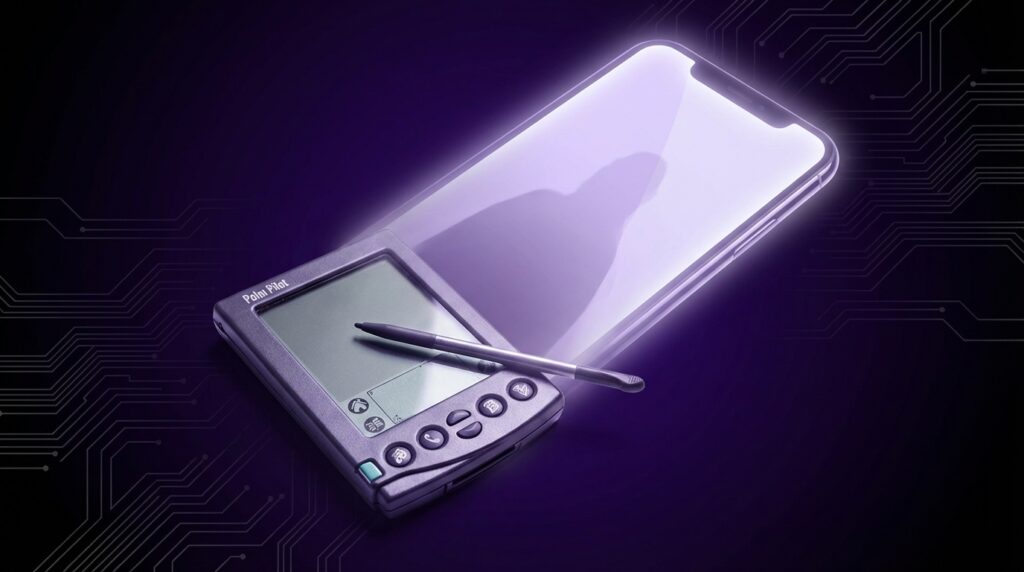
“The faint tap of a plastic stylus on a slightly rubbery screen, followed by that tiny ‘beep’ when your Graffiti stroke actually worked.”
You remember that sound, right? That soft confirmation beep from a Palm Pilot, the kind that told you your calendar was updated, your contact was saved, or your to‑do list just got one task shorter. Fast forward to the phone in your pocket now. You tap glass with your finger, not a stylus. You swipe instead of scribbling Graffiti characters. Your reminders sync across phones, watches, laptops, and maybe even your smart fridge.
The wild thing is that the Palm Pilot was already trying to do that core job: carry your brain, your schedule, your contacts, and a few secret notes in your pocket. No LTE, no TikTok, no OLED. Just a chunky little plastic block with a 160 x 160 pixel screen, barely any color in the early models, and yet it carried the same promise your smartphone pushes today: “You will not forget things, because I will remember them for you.”
The feel of a Palm in your hand
If you held one today, the first surprise would be the weight. Not heavy like a modern “Pro Max” phone, more like a small TV remote. The Palm Pilot 5000, for example, weighed around 160 grams with batteries. It felt dense, like a solid chunk of tech, with that slightly textured grey plastic shell that creaked a bit if you squeezed it.
The front face was dominated by that small monochrome LCD panel. No glass, no edge‑to‑edge anything. The screen sat inside a plastic frame, with a matte surface that diffused light instead of blasting brightness at your retinas. Outdoors in sunlight it was actually easier to read than some current phones, because it relied on reflective light. Under a desk lamp, the screen had a faint greenish tint that made you feel like you were using a mini command center from some 90s sci‑fi movie.
Below the screen lived the hardware buttons. Four main app buttons: Calendar, Contacts, To‑do, and Notes. Under those, two little up/down scroll rocker buttons. Those six buttons and the stylus could run your whole digital life. No app grid, no swiping between pages of icons. Just “I want my calendar” and boom, you were there.
On the right side sat a groove that held the stylus. Early styli were simple plastic wands, light and a bit flimsy, but they clicked into the silo with a satisfying snap. Taking the stylus out felt like unsheathing a digital pen. Your brain instinctively went “OK, now we write.”
Maybe it was just nostalgia talking, but the Palm did not rush you. You tapped, waited a fraction of a second for the screen to refresh, and that delay gave each action weight.
What the Palm Pilot actually did
The original job: be your pocket organizer
Palm Pilots arrived in a world of paper Filofax binders, wall calendars with dog photos, and business cards stacked with rubber bands. So the pitch was simple: take the planner you carried in your bag, shrink it, give it a CPU, and make it sync with your computer.
Core apps shipped with almost every Palm OS device:
– Date Book (Calendar)
– Address (Contacts)
– To Do List
– Memo Pad (Notes)
These apps were boring in the best way. No animations, no fancy graphics. You got single‑color icons, basic lists, and some checkboxes. The value was in speed. Press the Date Book button, screen flashes, your schedule is there. Need a phone number? Tap Address, start Graffiti input for a name, the list jumps as you write. The CPU inside a Palm, often a Motorola 68328 at 16 MHz in early models, was not powerful by modern standards, but the OS was so lean that it felt quick.
You planned your week with the stylus, dragging little blocks of time in a grid that looked like a digital planner page. You wrote notes in Memo Pad that were just plain text. No fonts to pick. No bold or italics. Just letters marching line by line.
Graffiti: the weird way we learned to write for computers
The killer feature was not the apps. It was the input.
The lower part of the front face, just under the screen, had a silkscreened area. That was the Graffiti zone. It looked like a blank grey rectangle with small labels for letters and special characters. You wrote in that space, and the Palm tried to recognize what you meant using a special alphabet that looked like shorthand.
For example:
– “A” was an upside‑down V.
– “T” was a straight vertical line with a small cross at the top.
– “K” looked like a vertical line with two angled strokes.
You had to learn it. Graffiti was not true handwriting recognition. You learned its rules, and then you wrote in that style. After a week or two, many users could write almost as fast as they could on paper, but with fewer recognition errors than the messy pen systems from competitors.
Every stroke gave a subtle beep if you left sounds on. That sound, plus the slight friction of plastic stylus against matte digitizer, had a very particular feel. Different from glass. A bit rubbery, like writing on a laminated card.
It made the Palm feel like a real tool. You were not just jabbing icons. You were writing, entering commands, feeding thoughts directly into this tiny machine.
Syncing before the cloud: the cradle and HotSync
Modern phones back up in the background. You do nothing. Data ends up in the cloud. The Palm way was very different and very physical.
You had a plastic cradle on your desk, usually connected to your desktop PC via serial cable, later USB. The cradle had two rails and a connector at the bottom. You would drop the Palm into this little stand like it was docking at its home base. At the front of the cradle, a big red button: the HotSync button.
Tap that button and the Palm played its famous little “HotSync” chime. The PC beeped. Your calendar, contacts, notes, and installed apps synced both ways through HotSync software. If you deleted something on the Palm, it deleted on the PC. If your desktop Outlook got a new appointment, it appeared on your Palm the next time you synced.
That single big button trained people to trust digital data. You could wipe your Palm and restore it from the desktop. You could upgrade to a newer model and carry everything forward. For many people, that was their first taste of real data continuity.
Retro Specs: Palm Pilot Professional (1997)
CPU: Motorola 68328 DragonBall @ 16 MHz
RAM: 1 MB (yes, megabyte)
Screen: 160 x 160 pixels, monochrome, 2.9 inches
Battery: 2 x AAA, around 2 months of typical use
Connectivity: Serial cradle for HotSync, infrared port
On 1 MB of RAM, the Palm could store calendars, addresses, memos, and third‑party apps. That RAM also acted as working memory. No multi‑gigabyte anything. Just highly compressed data structures and careful programming.
Why Palms feel like proto‑smartphones
Personal data, in your pocket, all the time
At its core, a smartphone is a personal data hub. Your contacts, your schedule, your messages, your files, all living in a small slab that never leaves your side.
Palm Pilots checked the same boxes, minus phone calls and mobile internet:
– Personal Information Management (PIM) with multiple apps
– Local storage of your data
– Sync with a bigger computer
– Extensible through third‑party apps
– Portable form factor that goes everywhere
People treated Palms the same way many treat their phones now. You did not leave the house without it. You checked your schedule at dinner. Some users even kept medical data, client notes, or simple budget sheets in there.
Many later models started to blur the line even more: wireless email via add‑on modules, SMS through compatible phones, and upgradable memory cards.
The app story: before “there is an app for that”
Palm OS had an early and very lively software scene. Developers wrote in C, compiled small, tight apps, and distributed them as downloadable PRC files.
There were:
– Simple games like Dope Wars or Bubblet
– Finance tools like PocketQuicken
– E‑book readers like Palm Reader
– Science tools, calculators, reference guides
– Early messaging clients for networked Palms at work
Install was rudimentary. You downloaded the PRC to your computer, added it to a HotSync list, then the next sync copied it to your Palm. No app store, no star ratings, just websites listing software and sometimes shareware fee requests.
Even with those limits, the pattern is very similar to what you see in modern ecosystems: a base OS with core apps, then a developer community pushing the device into unexpected niches. That pattern would later show up in iOS and Android, scaled up with modern networking and graphics.
From PDA to “smartphone”: where the phone arrived
The early Palms were PDA only. If you wanted to make a call, you still pulled out a separate phone, often a chunky Nokia, Sony Ericsson, or Motorola.
Then hybrids arrived:
– Handspring Treo (founded by former Palm folks)
– Palm VII with wireless data for certain services
– Later Palm Treo models running Palm OS or Windows Mobile
These devices glued a phone radio to the PDA. Full QWERTY keyboards, touchscreens, and mobile voice in one package. You could say this is where Palm crossed the line into what people now call smartphones.
No capacitive multi‑touch yet. Mostly resistive screens that needed stylus pressure or firm taps. But you had:
– Phone calls
– SMS
– Email (often via services like Good or corporate sync)
– Web browsing in a basic form
For someone in an office or in sales at that time, a Treo was effectively what an iPhone is for many people now: the central device where calls, messages, scheduling, and notes lived together.
The sensory gap: Palm Pilot vs your current phone
Your present phone is glossy, mostly glass and metal, with tiny tolerances and nearly sealed seams. Holding it feels like holding a polished stone that glows.
Palms felt like gadgets. You felt every physical divide: the groove for the stylus, the curve of the back, the slight ridge at the screen frame. Buttons had real travel and sometimes a distinct click sound.
To lay it out clearly:
| Feature | Palm Pilot Professional (1997) | Modern Flagship Smartphone (2025 example) |
|---|---|---|
| Display | 2.9″ monochrome LCD, 160 x 160 pixels, no backlight on earliest units | 6.7″ OLED, ~3200 x 1440 pixels, 120 Hz, HDR |
| Input | Resistive touchscreen with stylus, Graffiti handwriting area, 6 hardware buttons | Capacitive multi‑touch, finger gestures, haptic feedback, minimal physical buttons |
| Processor | Motorola 68328 DragonBall @ 16 MHz | Custom SoC with multi‑core CPU & GPU, ~3 GHz CPU clocks |
| Memory | 1 MB RAM & storage combined | 12 GB RAM, 256 GB storage (or more) |
| Connectivity | Serial cradle, infrared port | 5G, Wi‑Fi 6/7, Bluetooth, NFC, USB‑C |
| Battery | 2 x AAA alkaline, weeks of use | Built‑in Li‑ion, 1 to 2 days under heavy use |
| Primary use | PIM: calendar, contacts, notes, simple apps | Communication, media, gaming, productivity, smart home control |
Looking at that table, raw power is not even in the same league. Your smartwatch probably outclasses a Palm Pilot by several orders of magnitude. Yet the mental model is similar: a grid or list of apps, each focused on a job. A persistent personal database synced with something larger. A portable interface to digital life.
How Palm shaped the way we use phones now
Quick access with physical cues
Those four hard buttons on the Palm were not random. They trained users to think in “modes”: now I am in Calendar, now I am in Address. That is very close to the dock at the bottom of modern smartphone home screens, where Calendar, Phone, Messages, or Mail get permanent space.
Press the hardware Calendar button, get calendar. Press again, switch views. Single‑purpose, predictable access. That pattern still lives on as:
– Long‑press shortcuts on app icons
– Dedicated home bar icons
– Even physical mute or camera buttons on some devices
The idea of “one press, one core function” came from an era where every CPU cycle and every tap counted.
Sync and backups as a normal habit
Before Palms, backups were mostly a thing people talked about but rarely did, outside IT pros and some hobbyists. You wrote things in a paper planner and hoped you did not lose it.
With Palm HotSync:
– You pressed a physical button.
– You watched progress messages scroll on both devices.
– You regularly mirrored your brain between pocket and desktop.
That habit lowered the mental barrier for later cloud sync systems. When iCloud, Google Sync, or Exchange ActiveSync came along, many Palm veterans already understood why they mattered. Data did not belong in one fragile device.
Input experimentation: from Graffiti to keyboards to touch
Palm’s Graffiti was an early trade‑off in input design: “We will ask you to change your writing style so the computer can respond quickly with little power.” That mindset echoed later in other choices:
– BlackBerry leaned on thumb keyboards and compressed network protocols.
– Early iPhones swapped stylus handwriting for on‑screen QWERTY, backed by strong predictive text.
– Android OEMs tried hardware keyboards, directional pads, and other hybrids.
The underlying question stayed the same: how can you get text, commands, and structure into a pocket computer in a way that feels natural, within the limits of hardware and software at the time?
Palm was one of the first to train a mainstream audience to speak a device’s language through motion and stroke, long before multi‑touch gestures like pinch‑to‑zoom became part of daily life.
The culture around Palms: not just hardware
Hacks, shareware, and that “try this PRC” culture
If you visited certain forums or early websites in the late 90s and early 2000s, you saw a specific vibe around Palm OS:
– People shared tiny utilities that tweaked how the launcher worked.
– Graffiti games appeared that turned writing practice into something like a typing tutor for stylus users.
– Themes and skins gave the plain interface some personality.
Many apps were less than 100 KB. Users proudly discussed how they shaved a few kilobytes off their app footprint to fit more tools into 1 or 2 MB. It was a mindset of constraints: make it fit, make it fast, make it useful.
Compare that to now: apps weigh hundreds of megabytes, data is cheap, and app stores mediate discovery. Back then, you had to hunt for PRC files, read plain text instructions, and trust that a random developer’s code would not break your sync.
User Review from 2000
“I switched from my paper planner to the Palm IIIxe three months ago. I have not opened the paper one since. HotSync saved me last week when I left the Palm in a taxi. I restored to a borrowed unit in 10 minutes. I am never going back to paper.”
You can hear in that voice how big a deal digital backup and restore felt. Not mystical. Just a habit that had real‑world payoff.
Business, medicine, and niche pro use
Palms did not only live in pockets of gadget fans. They slowly crept into serious fields:
– Doctors with drug reference guides and patient note templates
– Salespeople with price lists and order forms
– IT admins carrying network IP lists and server notes
– Field workers logging inspections or field data in custom apps
Hospitals sometimes deployed fleets of Palms with synchronized drug databases. Some companies wrote internal apps that turned Palms into order entry terminals, long before iPads and tablets became common.
The key was that the device felt simple enough to adopt without heavy training, yet open enough that developers could craft narrow tools for very specific jobs. In many ways, that is the same story you see later when businesses embraced smartphones and tablets for line‑of‑business tools.
Palm vs the early smartphone boom
When phones learned to do Palm things
At a certain point, the roles started to flip. Instead of PDAs getting phone features, phones began grabbing PIM and app ideas:
– Nokia’s Series 60 devices pulled in calendar, contacts, and simple apps into phones that also had cameras and SMS.
– Pocket PC Phone Edition tried to squeeze Windows‑style apps into phone shells.
– BlackBerry moved from email‑first pagers into full phone platforms.
Palm OS devices that were PDA only began to feel like they were missing something. Users no longer wanted to carry two gadgets all the time. That pressure pushed Palm into Treos and later into some Windows Mobile powered devices.
Palm tried to answer with Palm OS updates and later with webOS, but by then new platforms were arriving with touch‑first UI, high resolution full‑color screens, and mobile broadband.
The shift from “organizer” to “everything device”
One subtle thing changed along the way: expectations.
Palm owners normally saw the device as a digital organizer with some fun extras. A Palm that did not play MP3 files was not broken; it was doing its core job. Your music lived on a separate MP3 player. Your camera was another device. Your game console sat under the TV.
Smartphones slowly swallowed all of those roles. When your phone today cannot browse the web smoothly, edit high resolution photos, and run social apps, it feels incomplete. That growth in expectations set a bar that Palm, built on an OS geared around tiny footprints and low power, struggled to match.
Yet the DNA is straight: the way we tap on Calendar, reply to invites, grab a contact and share it, scribble notes on screen, all started as serious daily habits with tools like the Palm Pilot.
What a Palm Pilot teaches about modern UX
Speed by restraint
Palm’s UI was not just simple by accident. Engineers cut anything that did not need to be there. No multi‑window. Limited graphics. Short, direct menus.
From a UX lens, that yields a few principles that age well:
– Fewer choices per screen means less hesitation.
– Stable entry points (those hardware buttons) empower muscle memory.
– A very fast response, even with plain visuals, beats a slow fancy animation.
Modern phones can learn from that. Some of the best mobile apps today echo Palm’s spirit: plain, fast, focused. Minimal tabs, instant launch, reliable shortcuts. When you see a bloated app crushed under animations and clutter, it feels like the inverse of the Palm ethos.
Battery life by design, not battery size
Palm Pilots ran for weeks on a pair of AAA cells because:
– The CPU slept aggressively.
– The screen was reflective and not constantly lit.
– The OS did not do background tasks unless you started them.
Many smartwatches and e‑ink devices today follow a similar pattern. They survive on tiny batteries by being careful about what runs, when it runs, and how often the screen updates.
Your smartphone does a lot more, of course. Still, the tension between always‑on features and battery life pushes designers back to the same trade‑offs Palm faced, just at a different scale.
Looking at your smartphone through Palm‑tinted glasses
Pick up your phone and imagine a Palm‑style version of each part:
– Your note app, stripped to text only, with no images or audio.
– Your calendar, running with a single color, simple views, almost no graphic flare.
– Your contact list, just fields and search, nothing more.
Now imagine hard buttons for each of those. No need to unlock, swipe, search, tap. Press one, and you are at your list in a blink.
Palm got that part very right: mapping consistent, simple physical actions to focused digital views. Many high‑end phones are now flirting with similar ideas again: dedicated action buttons you can map to camera or notes, widgets that jump straight into core tasks, voice hotwords that open a specific app state.
User Review from 2005
“I upgraded from the Palm IIIc to the Treo 650. I thought I would miss the pure organizer feel, but having phone, email, and Palm apps altogether is ridiculous. I press one button and I am in my calendar before a meeting. Press another and I am dialing a client. My old cell now lives in a drawer.”
That feeling of convergence, of many roles in one object, is what later smartphones turned into the default expectation for everyone.
From Palm to smart homes and beyond
The tagline for this blog talks about “where mobile history meets modern tech,” and Palm is a perfect example of that overlap.
Your smart home today runs through apps that manage scenes, schedules, and device lists. Think about how much of that is really just:
– A list of “things” (lights, thermostats, speakers)
– A calendar of “when” they should act
– A set of “notes” or status about each thing
Palm Pilots gave a generation of users muscle memory for managing structured lists, schedules, and notes on small screens. That mental template now pops up everywhere:
– Smartwatch apps scrolling through notifications like a Palm list
– Smart home apps showing scenes like calendar events
– Car dashboards with list‑based menus for sources, contacts, and routes
The lineage is quiet but clear. Before we were ready to talk to our homes, we learned to tap our lives into little grey screens that ran on a pair of AAA batteries.
The Palm Pilot did not become the phone in your pocket. Different companies, platforms, and ideas took over that space. Yet beneath the glass of your modern smartphone, the Palm way of thinking still echoes: keep your life in your pocket, sync it with a larger world, and make the interface small enough that your thumb and brain can keep up.
